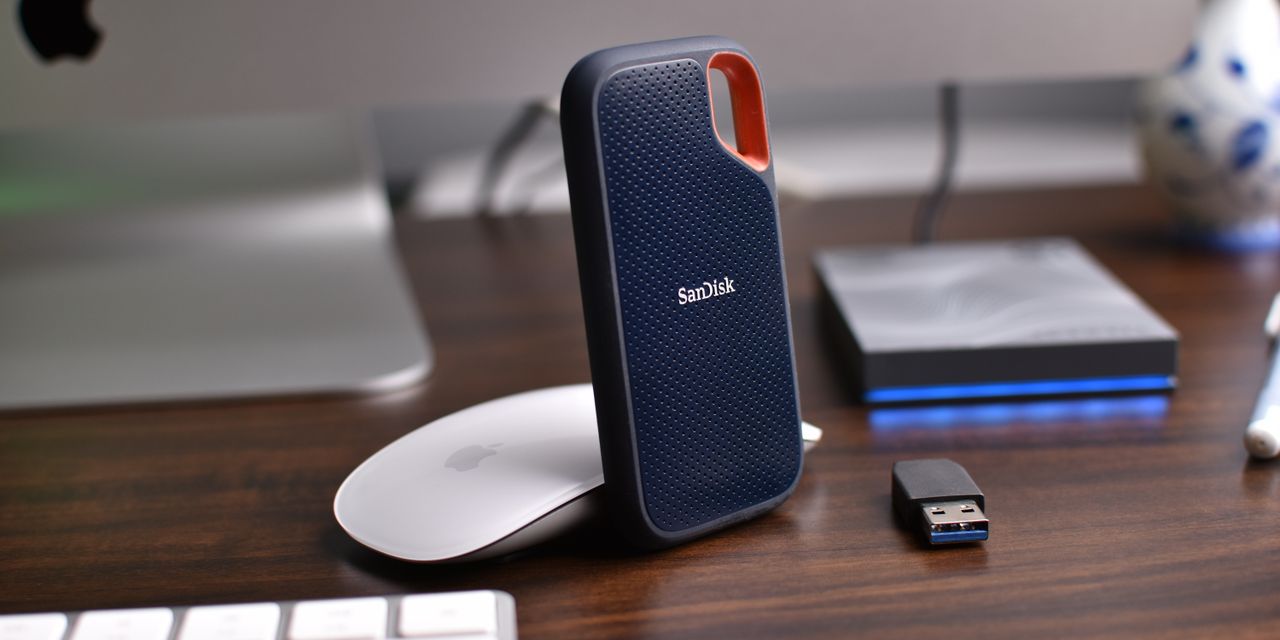
Keeping Ollama models on an external drive works well on a Mac, and you don't need a symbolic link or a Terminal trick to do it. Ollama's app has a Model location setting, and LM Studio sets its models directory in My Models.
Draw Things, Jan and GPT4All each have a setting of their own too. Hugging Face's cache is the exception: it has no settings window at all.
The pattern is the same for every tool. Format the drive as APFS, plug it into the fastest port you have, copy the models across, point the app at the copy, check that the models load, and only then remove the originals from your Mac.
The drive needs to be connected before you open the app. If it isn't, Ollama quietly goes back to the models folder in your home folder, and anything you download then lands on your startup disk. Other apps simply can't see the models until the drive is back.
A model on an external drive takes longer to load, because it's read through a cable instead of from the internal disk. Once it's loaded, it runs from memory, so the drive matters most for how long you wait at the start.
What changes when models live on an external drive
Local models are some of the largest files on a Mac. A single model can be several gigabytes or tens of gigabytes, and the folders of people who try a few tools commonly reach 50 to 150 GB. Moving them is often the biggest single change you can make to a small internal disk.
What stays the same and what doesn't
Your models work exactly as before: same names, same answers, same settings. What changes is where the files are read from, and that the app now depends on a drive that can be unplugged, renamed or reformatted.
Chats, presets and app settings usually stay in your home folder. Only the folder you point the app at moves. That's why the folder setting matters more than anything else in this post: it's the one link between the app and its models.
Does an external drive make models slower?
Loading is slower; answering usually isn't. When you start a chat, the app reads the model from the disk into memory, and that read is limited by the drive and the cable. After that, the model runs from memory, on your Mac's chip.
How often the read happens depends on the app. Ollama keeps a model in memory for 5 minutes after you last use it, then unloads it, so the next question after a break reads it from the drive again. LM Studio keeps models that other apps load on demand for up to 60 minutes of idle time by default.
If your Mac doesn't have enough memory for the model, everything is slow wherever the files are. A faster drive doesn't fix that; a smaller model does.
Which models are worth moving?
Start with the largest ones you use rarely. A model you open every day might be worth the internal disk's speed; a 40 GB model you try once a month isn't.
Some models can't be downloaded again: ones you created in Ollama from a Modelfile, files you imported into LM Studio or Draw Things, and fine-tunes you made. Moving those to a drive is fine, but they then need a backup of their own, because the drive becomes their only copy.
Choosing and preparing the drive
Three things decide how well a models drive works: whether it's an SSD, which port and cable connect it, and how it's formatted. The format is the one most often wrong, because many drives come formatted for Windows.
SSD or hard drive?
An external SSD is the better choice for models. Apple notes that APFS is optimized for flash and SSD storage, though it also works on traditional hard drives. A hard drive holds more for the money and works fine for archiving models, but loading a large model from one takes noticeably longer.
A hard drive may also go to sleep when it's idle and need a moment to spin up before the first read. An SSD has no such wait.
Which port should the drive use?
Use the fastest port your Mac has. Apple's specifications list very different maximum speeds for the ports on current Macs, and a models drive feels the difference every time a model loads.
| Port on your Mac | Up to | For a models drive |
|---|---|---|
| Thunderbolt 5 | 120 Gb/s | Room for the fastest external SSDs |
| Thunderbolt 4 or USB 4 | 40 Gb/s | Room for fast external SSDs |
| USB 3 | 10 Gb/s | Works well; large models take longer to load |
| USB 2 | 480 Mb/s | Very slow for files this size |
MacBook Neo has two USB-C ports that look alike but aren't: one is USB 3 and the other USB 2. Apple's guide says to connect USB 3 devices to the leftmost port as you face the left side of the Mac. A models drive belongs there.
The cable matters as much as the port. Apple's USB-C Charge Cable, for example, transfers data at only 480 Mb/s, the speed of USB 2. Use the cable that came with the drive, or one rated for Thunderbolt or USB 3 speeds.
- USB 2, 480 Mb/s333.3 seconds
- USB 3, 10 Gb/s16 seconds
- Thunderbolt 4 or USB 4, 40 Gb/s4 seconds
- Thunderbolt 5, 120 Gb/s1.3 seconds
Arithmetic from the maximum port speeds in Apple's specifications for current Macs. Real loads take longer: the drive's own speed, the cable and the app's work all add to it.
Which format: APFS, Mac OS Extended or exFAT?
Disk Utility offers four kinds of format. Apple describes APFS as the default for Macs since macOS 10.13, Mac OS Extended as the format for macOS 10.12 and earlier, and MS-DOS (FAT) and ExFAT as the formats for drives shared with Windows.
| Format | Good for models? | Why |
|---|---|---|
| APFS | Yes, the best choice | The Mac's own format, optimized for SSDs, supports everything the tools use |
| Mac OS Extended (Journaled) | Yes | Keeps a journal and supports links; a fine choice for a hard drive |
| ExFAT | Works, with catches | macOS adds hidden ._ files that some tools have tripped on, and it keeps no journal |
| MS-DOS (FAT) | No | A single file can't be larger than 4 GB, and most models are |
For a drive used only with Macs, choose APFS. If the drive will also store personal files, Apple's APFS (Encrypted) option protects them with a password; models don't need it, but they don't mind it either.
Why exFAT causes trouble with models
ExFAT can't store some of the information macOS keeps about files, so macOS writes it into small hidden files whose names start with ._, next to the real ones. Most apps never notice them. Tools that read every file in a models folder sometimes do.
LM Studio's developers traced one indexing error on Mac to exactly these files on an exFAT drive, and fixed it in a later version. A drive formatted as APFS never gets them, which is the simplest way to avoid the whole class of problem.
ExFAT also keeps no journal, according to Microsoft's comparison of file systems; a journal is what helps a drive recover from an interrupted write. If an exFAT drive is unplugged in the middle of a download, run First Aid on it in Disk Utility before you use it again.
When exFAT is still the right choice
If the same drive has to work with a Windows PC, exFAT is the format both computers can read and write. It's workable for models if you eject the drive properly every time and keep your AI apps up to date.
Just don't expect the two computers' apps to share one models folder. Ollama, LM Studio and the rest each keep their own layout.
How do you check and change a drive's format?
Select the drive in Finder and choose File › Get Info. Apple says the format is shown under General Information, next to Format.
To change it, copy anything you need off the drive first, because erasing removes everything on it. Then do one of these:
- In Finder, Control-click the drive in the sidebar and choose Erase Disk. Name the drive, choose a format, and click Erase. Apple documents this in macOS 26 Tahoe and macOS 27 Golden Gate.
- Or open Disk Utility, choose View › Show All Devices, select the drive itself rather than a volume on it, and click Erase. Choose APFS as the format and, if asked, GUID Partition Map as the scheme.
Name the drive once, and keep the name
Ollama's Model location and Hugging Face's variables store a path that includes the drive's name, such as /. Rename the drive later and those paths point at a place that no longer exists, and other apps can lose track too.
Pick a short, plain name before you move anything, and leave it alone. If two drives with the same name are connected at once, macOS gives the second one a slightly different path, with a number added, which breaks the paths too.
Moving Ollama models to an external drive
Ollama's Mac app has a setting for this. It changes where Ollama looks for models; it doesn't move the ones you already have.
Where is Ollama's Model location setting?
Click Ollama's icon in the menu bar and choose Settings, or choose Ollama › Settings while its window is open. Under Model location, click Browse and choose a folder.
When you change it, Ollama restarts its server and uses the new folder from then on. New downloads go there, and the model menu lists what's in it.
How do you move Ollama models without downloading them again?
- Quit Ollama from its menu bar icon, so nothing is reading or writing models.
- In Finder, choose Go › Go to Folder, type
~/and press Return..ollama - Drag the whole
modelsfolder to the external drive, which copies it. It holdsblobsandmanifests, and both must go together. - Wait for the copy to finish, then open Ollama and choose Settings.
- Under Model location, click Browse and select the copied
modelsfolder. - Check that your models appear in the model menu, and start a chat with one.
- When you're sure, move the old
~/folder to the Trash, and empty it to get the space back..ollama/ models
Copying first and removing last means that if the copy or the drive has a problem, nothing is lost. The space only comes back at step 7.
Choose the models folder itself, not the one above it
Ollama expects the folder you choose to contain blobs and manifests directly. If you copied the whole ~/ folder and choose that, Ollama finds no models there and starts a new, empty set of folders.
People on Ollama's issue tracker have hit exactly this: the models were on the drive, one folder deeper than Ollama looked. Choosing the right level fixes it at once.
Why you shouldn't copy only some of Ollama's files
A model in Ollama is a small manifest plus the layers it's built from, stored as files named by long hashes. Models built on the same base share layers. Copy only blobs, and Ollama lists no models; copy only manifests, and every model is missing pieces.
That's also why moving single models in Finder doesn't work. The post on deleting Ollama models explains how the layers fit together and how to remove one model at a time.
What if you run Ollama without its app?
Homebrew offers Ollama both as the app and as a formula with only the server and command-line tool. Without the app, there's no Settings window. The location then comes from an environment variable, OLLAMA_MODELS, which Ollama's FAQ documents.
Setting that variable isn't something you can do from System Settings or Finder. If you don't already manage environment variables, installing the app and using Model location is the simpler route.
LM Studio, Jan and GPT4All
These apps download models from Hugging Face but keep them in their own folders, in their own layouts. Each has a setting for that folder, and the same rule applies to all of them: copy, switch, check, then remove.
Where do you change LM Studio's models directory?
LM Studio's documentation says the models directory is changed in My Models. Its default is ~/, with a folder for each publisher and one for each model inside it; earlier versions used ~/.
Unload any model and quit LM Studio, copy the publisher folders to a folder on the drive, then open My Models and point the models directory at that folder. The post on LM Studio's models folder goes through each step, and how to move back.
Why keep LM Studio's folder layout?
It does when the publisher and model folders are kept. LM Studio follows Hugging Face's layout: publisher, then model, then the files. Copy the publisher folders as they are, rather than loose model files, and LM Studio lists them in the new place.
Jan's data folder
Jan keeps its models in its data folder, with separate folders for models run with llama.cpp and with MLX, alongside your chats and settings. Its documentation says the data folder's location can be changed in Settings › General › Jan Data Folder.
That setting moves where everything in Jan lives, not only the models. Jan's documentation doesn't say whether existing files move with it, so check that your models and chats are listed in the new place before you remove anything from the old one.
GPT4All's download path
GPT4All saves each model as a single .gguf file, by default in ~/. In its settings, under Application, Download Path chooses where new downloads are saved.
Models you already have stay where they are. Copy them into the new folder, check that GPT4All lists them on its Models page, then remove the old copies.
The Hugging Face cache on another drive
Python libraries such as Transformers and Diffusers, Hugging Face's own command-line tool and apps such as llama.cpp share one cache, ~/. It's the hardest of these to move, because there's nothing to click.
Why isn't there a setting for the Hugging Face cache?
Hugging Face's libraries are code that other programs use, not an app with a window. Their documentation sets the cache's location with environment variables: HF_HOME moves everything Hugging Face keeps, and HF_HUB_CACHE moves only the downloaded models and datasets.
Those variables have to be set wherever your programs start, and they're read when a program loads the library, so programs already running don't see a change. macOS has no setting for them.
Is it worth moving the cache?
Only if you already manage environment variables for your Python work. If you don't, removing models you no longer use is the simpler fix: the cache only needs room for what you're working on now. The post on the Hugging Face cache explains how to see what's in it and remove single models.
What does the cache need from the drive?
Links. Hugging Face's documentation explains that the cache stores each file once, in a blobs folder, and that each revision of a model is a folder of symbolic links to those files. Where a drive doesn't support links, the cache stores full copies in each revision's folder, and a file shared between revisions takes its space more than once.
APFS and Mac OS Extended support these links. The links are relative, so a cache copied as a whole to such a drive keeps working.
Why some Mac apps keep their own copy
Apps from the Mac App Store run in a sandbox, where the app's container acts as their home folder. An app there that uses Hugging Face's libraries keeps its cache inside its own container, not in your shared one. Moving the shared cache doesn't move theirs; use the app's own setting if it has one.
Draw Things and other image apps
Image and video models are often larger than language models. A video model with the files it needs can pass 30 GB, which makes these apps good candidates for an external drive.
Can Draw Things keep its models on an external drive?
Yes. Draw Things keeps models inside its app container by default, in ~/. Its documentation says the Manage window, where you download and delete models, also lets you select an external folder for them.
To find it, open Settings in Draw Things, click the Model menu, then click Manage. Draw Things' notes for its March 2026 version mention fixing imports that ignored the External Folder choice, so keep the app up to date if you use it.
What happens to the models already in Draw Things?
Draw Things' documentation doesn't say whether choosing an external folder moves the models you have. Check the list in Manage after you switch. Delete models you no longer need there, in Draw Things, rather than in Finder: some models share parts such as text encoders, and the app knows which.
ComfyUI and DiffusionBee
ComfyUI and DiffusionBee keep models in their own folders, in their own ways. The post on image generation models on a Mac covers where each one keeps them, which files are shared, and what each app offers for keeping them elsewhere.

Every tool's setting at a glance
Here's where each tool keeps its models by default, and where you tell it to use another folder.
| Tool | Default folder | Where to change it |
|---|---|---|
| Ollama | ~/.ollama/models | Settings, Model location, Browse |
| LM Studio | ~/.lmstudio/models | My Models, models directory |
| Jan | Its data folder in Application Support | Settings, General, Jan Data Folder |
| GPT4All | ~/Library/Application Support/nomic.ai/GPT4All | Settings, Application, Download Path |
| Draw Things | Its container's Models folder | Settings, Model, Manage, external folder |
| Hugging Face cache | ~/.cache/huggingface/hub | No setting: HF_HOME or HF_HUB_CACHE only |
Can two tools share one models folder?
Not usefully. Each tool keeps models in its own layout: Ollama in hashed layers, LM Studio in publisher folders, Draw Things in its own converted format. A model downloaded in one isn't visible to the others, even on the same drive.
Give each tool its own folder on the drive, such as Ollama, LM Studio and Draw Things. That keeps the paths short and makes it obvious what each folder belongs to.
What happens when the drive isn't connected
This is where external models catch people out. Each tool behaves differently, and the difference matters most for Ollama.
| Tool | If the drive is missing when it starts |
|---|---|
| Ollama | Uses ~/.ollama/models on the startup disk instead; new downloads land there |
| LM Studio | Can't list or load the models on the drive |
| Draw Things, Jan, GPT4All | Can't use models that live on the drive |
| Hugging Face programs | Can't find their models until the drive is back |
Why Ollama fills your startup disk when the drive is missing
When Ollama's server starts, it checks that the folder in Model location exists. If it doesn't, Ollama doesn't stop with an error: it notes the problem in its log and uses the models folder in your home folder instead.
Your models on the drive don't appear in the menu. If you then pull or run a model, Ollama downloads it again, onto your startup disk, which is exactly what you were trying to avoid.
How do you get Ollama back to the drive?
Quit Ollama from its menu bar icon, connect the drive, wait for it to appear in Finder, then open Ollama again. It checks the folder each time its server starts, so it finds your models.
If Ollama downloaded anything while the drive was missing, those models are in ~/ on your startup disk. Check that folder's size with Get Info, and remove what you don't need as the post on deleting Ollama models describes.
What if you unplug the drive while a model is in use?
Don't. Quit the app, or at least unload the model, then eject the drive in Finder: select it and choose File › Eject, or click the eject button next to its name in the sidebar. If macOS says the disk is in use, an app still has a file open on it.
Pulling the cable during a download can leave a partial file behind, and on exFAT it can leave the drive needing repair. Apple's advice for a disk that won't eject is to find and quit the app that's using it.
Why macOS asks before an app reads the drive
macOS protects files on removable drives. Apple's developer documentation explains that an app gets access to a file on a removable volume when you choose it in an Open dialog, drag it to the app or open it from Finder. Otherwise, the first time the app reaches for the drive, macOS asks you.
Choosing the folder with Browse or a similar button usually counts as your consent. If an app's background server later can't read the drive, open System Settings › Privacy & Security › Files & Folders, find the app, and turn on its access to removable volumes.
Mistakes to avoid
Most problems with external models come from a handful of habits. They're easy to avoid once you know them.
| Mistake | What goes wrong | Instead |
|---|---|---|
| Changing the setting without copying | The app lists no models, and the old ones still take space | Copy first, switch, check, then remove |
| Choosing the folder above the models | The app finds nothing and starts a new, empty folder | Choose the folder that holds the models |
| Opening the app before the drive mounts | Ollama falls back to the startup disk | Connect the drive first |
| Renaming or reformatting the drive | Every saved path breaks | Name it once and keep the name |
| Using a FAT-formatted drive | Files over 4 GB can't be copied | Erase it as APFS |
| Using the charge cable | The drive runs at USB 2 speed | Use a data cable rated for USB 3 or Thunderbolt |
Should you use a symbolic link instead?
Many older guides replace a models folder with a symbolic link to the drive. It works until it doesn't: a link breaks quietly when the drive is renamed, and LM Studio's issue tracker has open reports of features misbehaving when its folder is a link.
Ollama, LM Studio, Draw Things, Jan and GPT4All all have a setting for their folder now. Use the setting, and the app shows you where its models are.
Can models live in iCloud Drive, Dropbox or on a network drive?
They can, but it's a poor fit. A cloud folder uploads every model you download, uses your cloud storage, and may keep only a placeholder on the Mac when space runs short, so the app waits for a download before it can load the model.
A network drive works only while it's mounted, and every load crosses the network, which is usually slower than a drive on a cable. A drive connected directly to your Mac is the simplest setup.
Don't move folders while the app is open
Quit the app before you copy or remove its models. An app that's downloading or loading a model while you move its folder can leave a half-written file in one place and a missing file in the other.
Backups, a second Mac and moving back
An external drive changes what your backups hold. It's worth deciding what deserves one before the drive becomes the only copy of anything.
Should the models drive be backed up?
Models you downloaded don't need a backup: they download again. Models you made or imported do, along with Ollama Modelfiles and anything you fine-tuned. Copy those to another drive or folder that your backups include.
If Time Machine backs up a drive that holds downloaded models, you can leave the models folder out. Choose Apple menu › System Settings, click General, click Time Machine, then click Options and add the folder to the list of excluded items.
Can you use the same models drive on two Macs?
Yes, if both Macs run the same tools. Apple says APFS works with macOS 10.13 or later, so any Mac that runs these apps can read the drive. Connect it, then point each app at its folder on the drive with the same setting you used on the first Mac.
Use the drive with one Mac at a time. None of these apps documents sharing one models folder between two Macs at once, over a network or otherwise.
How do you move models back to the Mac?
Reverse the steps. Quit the app, copy the folder back to its default place, such as ~/, then set the app's folder back to the default and check your models are listed. Remove the copy on the drive only after that.
Make sure the startup disk has room first. The guide to local AI models lists where each tool keeps its files by default, and how to remove the ones you no longer need instead of moving them.
How to keep the drive from filling up
An external drive fills the same way your Mac did: one model at a time, each one staying until removed. Check the drive's folders with Get Info every month or two, remove models you only tried, and keep a short list of the ones you made yourself.
How the app does it
Wombit is a native Mac app that shows what's using your storage and explains every item in plain language. It scans the whole disk or any folder, reading only names, sizes and dates, and file names and paths never leave your Mac.
The catalog explains each tool's default models folder on your startup disk: what's inside, who made it, how models are removed and what removing them costs. Select one in the map, the app's home screen, to see it.
~/
.ollama/ models Language models you've pulled or created with Ollama, stored as shared layers.
Review first · Explained only: never removed
~/
.lmstudio/ models Language models downloaded or imported in LM Studio, in a folder for each publisher and model.
Review first · Moves it to the Trash
~/
.cache/ huggingface/ hub Models and datasets downloaded from Hugging Face, shared by every library and tool that uses them.
Review first · Moves it to the Trash
~/
Library/ Containers/ com.liuliu.draw-things/ Data/ Documents/ Models Image and video generation models downloaded or imported in Draw Things.
Review first · Explained only: the app shows you how
All four are Review first: models are your choice to keep, so nothing there starts checked or counts toward the safe-to-remove total.
The app never removes Ollama's models, because only Ollama knows which layers each model still needs. It moves LM Studio's folder or the Hugging Face cache to the Trash only when you check it, and Draw Things' models are left for you to delete in Draw Things.
After you move models to a drive, a new scan of your startup disk shows the space they used as free. The menu bar item measures the folders the catalog knows, AI models included, once a day.
If Ollama ever starts without the drive and downloads onto your Mac, What Changed shows the folder growing, and an alert can tell you when something grows by 10 GB or more in a day. Both are PRO.
Seeing what your models take, and why, is free. Cleanup is PRO: one payment of $4.99 with lifetime access. Every Pro tool's review is free to open, so you see what would go and why before you buy.
Frequently asked questions
How do I change where Ollama stores models on a Mac?
Open Ollama's Settings from its menu bar icon, and under Model location click Browse and choose a folder. Ollama restarts its server and uses that folder from then on. Your existing models don't move by themselves, so copy the whole models folder there first.
Can I run Ollama models directly from an external SSD?
Yes. Ollama reads a model from the drive when it loads it, then runs it from memory. A fast SSD on a Thunderbolt or USB 3 port keeps loading quick, and once a model is loaded, answers come at the same speed as from the internal disk.
What happens to Ollama if the external drive is unplugged?
If the folder isn't there when Ollama starts, it uses the models folder in your home folder instead, and only notes it in its log. Models on the drive don't appear, and anything you download lands on your startup disk. Quit Ollama, connect the drive and open Ollama again.
Should an external drive for AI models be APFS or exFAT?
APFS, if you only use it with Macs. ExFAT works for sharing with Windows, but macOS adds hidden files starting with ._ that some AI tools have tripped on, and exFAT keeps no journal. Avoid MS-DOS (FAT), which can't hold files over 4 GB.
Do I need a symbolic link to move LM Studio or Ollama models?
No. Ollama has a Model location setting and LM Studio sets its models directory in My Models. A setting is easier to check and change than a link, which breaks quietly when a drive is renamed.
How do I move the Hugging Face cache to another drive?
Hugging Face's libraries have no settings window. The cache's location comes from the HF_HOME or HF_HUB_CACHE environment variable, set wherever your programs start. If you don't already manage those, removing models you no longer use is the simpler fix.
Will an external drive make my local LLM slower?
Loading takes longer, especially over USB 3 or slower. Once the model is in memory, generation depends on your Mac's chip and memory, not the drive. Apps unload idle models after a while, so the first question after a break waits for a fresh load.
Does Time Machine need to back up my models drive?
Not for downloaded models, which download again. Back up the ones you can't get back: models you imported, created from a Modelfile or fine-tuned. You can exclude a models folder in System Settings, General, Time Machine, Options.
Sources
- File system formats available in Disk Utility on Mac · Apple
- Connect and use other storage devices with Mac · Apple
- NSRemovableVolumesUsageDescription · Apple Developer
- Ollama FAQ · Ollama
- Environment variables · Hugging Face
- Models · Draw Things