iPhone backups are stored on a Mac in your home folder's Library, at ~/. Each iPhone, iPad or iPod touch you've backed up has one folder there, named after the device's identifier rather than its name. Finder makes these backups, and so did iTunes before macOS Catalina; the location has stayed the same.
The quickest way to find one is through Finder itself. Connect the device, select it in the Finder sidebar, click Manage Backups, then Control-click a backup and choose Show in Finder. Finder opens the Backup folder with that device's folder selected.
Finder has no setting to save backups anywhere else. To keep a backup on an external drive, copy the device's whole folder to the drive, check the copy, then delete the backup on your Mac in Finder. To restore from it, copy it back into the Backup folder first.
If the goal is space rather than an archive, iCloud Backup is the supported way to stop keeping backups on the Mac at all. The sections below cover finding, identifying, encrypting, moving and deleting backups, and when switching to iCloud makes sense.
Where are iPhone backups stored on a Mac?
Every backup made on this Mac lives in one place: the ~/ folder in your home folder. The tilde stands for your home folder, so each user account on the Mac has its own Backup folder, holding only the backups made while that user was logged in.
Inside are folders with long names of letters and numbers, one for each device. There's no file per backup, and no file you can double-click to see what's inside. A backup is a whole folder, and it only works as a whole.
How do you open the Backup folder in Finder?
There are two ways in, and both work the same in macOS 26 Tahoe and macOS 27 Golden Gate.
- In Finder, choose Go › Go to Folder.
- Type
~/and press Return.Library/ Application Support/ MobileSync/ Backup - Finder opens the folder. To compare devices, choose View › as List, then View › Show View Options, and select Calculate all sizes.
The second way starts from the backup rather than the folder. With a device connected, open its page in Finder, click Manage Backups, Control-click a backup and choose Show in Finder. This is the better route when you have several devices, because it tells you which folder is which.
Why can't you see the Library folder?
macOS hides the Library folder in your home folder, so you won't find it by browsing. Go to Folder works without showing it. To open it once from the menu, hold down Option while you click Go in Finder's menu bar, and Library appears in the list.
The folder is hidden because it holds the files apps and macOS manage for you. Opening it to look is fine. Moving, renaming or deleting folders in it, beyond a backup you've chosen, is where problems start.
Has the location changed between macOS versions?
No. What changed is the app that makes backups. Before macOS Catalina, iTunes backed up devices; since then Finder does, with the same folder underneath.
| macOS version | App that makes backups | Where you manage them | Folder on disk |
|---|---|---|---|
| macOS 27 Golden Gate | Finder | Device page › Manage Backups | ~/Library/Application Support/MobileSync/Backup |
| macOS 26 Tahoe | Finder | Device page › Manage Backups | Same folder |
| macOS Catalina to Sequoia | Finder | Device page › Manage Backups | Same folder |
| macOS Mojave and earlier | iTunes | iTunes › Preferences › Devices | Same folder |
A backup made in iTunes years ago is still in the same folder, and Finder lists it alongside new ones. That's one reason the folder often holds backups of phones that are long gone.
On a Windows PC, backups made with the Apple Devices app or iTunes go to a different folder in the user's profile. Those aren't on your Mac, even if you once used the same devices with both.
How to tell which backup belongs to which device
The folder names are the hardest part. Nothing in Finder's normal view tells you which folder is your current iPhone and which is an iPad you sold three years ago.
What do the folder names mean?
Each folder is named after the device's unique identifier, its UDID. Newer devices have an identifier of 25 characters with a hyphen after the eighth. Older devices have one of 40 letters and digits with no hyphen.
A folder whose name ends in a date and time is usually an archived backup. Archiving keeps a copy of a backup as it was at that moment, so later backups of the device don't change it, and the archived copy stays until you delete it.
| What you see | What it is | What to do |
|---|---|---|
| A folder with a 25-character name and one hyphen | A backup of a newer device | Check its device and date in Manage Backups |
| A folder with a 40-character name | A backup of an older device | Often a device you no longer have |
| A name ending in a date and time | An archived backup | Keep it only if you need that moment |
| A lock icon in Manage Backups | An encrypted backup | You need its password to restore |
| Several folders, one large | Each device's latest backup | The large one has the most data not in iCloud |
How do you find a specific backup with Show in Finder?
Manage Backups lists every backup on the Mac by device name, with the date it was made. Connect any iPhone or iPad you've backed up, select it in the Finder sidebar, and click General in the row near the top. Then click Manage Backups.
Control-click the backup you're interested in, and choose Show in Finder. The Backup folder opens with that backup's folder selected. Choose File › Get Info to see its size before you decide anything.
What's inside a backup folder?
A backup folder holds a few files that describe it and a large number of subfolders with two-character names. The describing files record the device's name, its software version, the date of the last backup and a list of what the backup contains.
The device's own data sits in the subfolders under coded names, not under names you'd recognize. You can't browse a backup like a folder of photos. Opening files in it won't show you your messages or notes, and changing anything inside can leave a backup that can't be restored.
That's the rule for every backup folder: copy it whole, move it whole, delete it whole, or leave it alone. Never take files out of it or put files into it.
Can you see backups without connecting a device?
Yes, through Storage settings. Choose Apple menu › System Settings, click General in the sidebar, then Storage. Click the information button next to iOS Files, which Apple describes as holding iOS backups and firmware.
The list shows each backup and its size, along with any iPhone or iPad software files Finder downloaded. You can select a backup there and click Delete, or click Show in Finder to look at its folder first.

What a backup holds, and why it gets so large
A backup to your Mac isn't a copy of everything on the phone. It's the device's data and settings, minus what's already in iCloud or can be downloaded again. That's why two iPhones with the same storage can make backups of very different sizes.
What does a backup to your Mac include?
Apple describes a computer backup as holding almost all of a device's data and settings. It leaves out what can come back another way:
- Content from the App Store and iTunes Store, and PDFs downloaded straight into Books.
- Music, videos, books and photos you synced to the device from your Mac.
- Data already stored in iCloud, such as iCloud Photos and messages kept in iCloud.
- Face ID and Touch ID settings, Apple Pay information and settings, Mail data and offline maps.
- Activity, Health and Keychain data, unless the backup is encrypted.
Why is my iPhone backup so big?
Usually because of photos and messages. If iCloud Photos is off, every photo and video on the phone goes into the backup. If Messages in iCloud is off, every conversation and attachment does too.
App data adds the rest. Documents and data that apps keep on the device go into the backup, while apps that keep their data in iCloud Drive leave it out. A phone whose photos are in iCloud makes a small backup; a phone full of video that isn't in iCloud makes a large one.
To make future backups smaller, turn on iCloud Photos and Messages in iCloud on the device, if your iCloud storage allows. The post on Messages taking up space covers what that setting changes on the Mac side.
How much space do iPhone backups take on a Mac?
There's no fixed size. Each backup is roughly the device's own data that isn't in iCloud, so it grows as the phone fills and shrinks as you move things to iCloud.
- Backups of every device on the Mac10–200 GB · Review first
- One iPhone or iPad software file5–15 GB · Safe
- Free iCloud storage, for comparison5 GB
Typical ranges on Macs that keep backups at all, from the research behind the app's catalog. The 5 GB of free iCloud storage is Apple's figure.
The total depends mostly on how many devices you've backed up over the years. A Mac that has backed up a family's phones since the iTunes days can hold several backups of devices nobody uses anymore.
Does a new backup replace the old one?
For the same device, yes. Each backup updates that device's folder, so you have one current backup per device rather than a growing pile. That's also why you can't go back to last month's backup unless you archived it.
Backups don't replace each other across devices. A new iPhone gets a new folder, and the old phone's folder stays until you delete it, even if you restored the new phone from it.
Encrypted iPhone backups
Finder can encrypt a backup with a password you choose. It's off by default, and once you turn it on, every later backup of that device is encrypted too.
What does an encrypted backup add?
Apple lists what an encrypted backup can hold that an unencrypted one doesn't: saved passwords, Wi-Fi settings, website history, Health data and call history. Apple also says you need encryption if you want to keep Health and Activity data from the device or an Apple Watch.
Encrypted backups don't include Face ID, Touch ID or the device passcode. Nothing changes about where the backup is stored: it's in the same folder, with the same kind of name.
How do you turn on encryption?
- Connect the device and select it in the Finder sidebar.
- Click General, then select Encrypt local backup.
- Create a password, enter it again, then click Set Password.
The backup starts straight away and replaces the device's earlier backup with an encrypted one. When it finishes, check that the date of the last backup has changed.
How do you know if a backup is encrypted?
There are two signs. On the device's page in Finder, Encrypt local backup is checked. In Manage Backups, an encrypted backup has a lock next to its name.
What if you forget the encrypted backup password?
You can't restore an encrypted backup without its password. On iOS 11 or later, you can reset the password on the device and make a new encrypted backup, but the new password doesn't open older backups.
On the iPhone, open Settings › General › Transfer or Reset iPhone › Reset, and tap Reset All Settings. It resets settings such as wallpaper and brightness, not your data, and removes the backup password.
Then connect the iPhone to Finder and make a new encrypted backup. The old encrypted backups stay locked, so they're candidates to delete once the new one is done.
Should you encrypt a backup you'll keep on an external drive?
It's a good idea. A drive gets lost more easily than a Mac, and an encrypted backup keeps the passwords, Health data and history inside it unreadable without the password. Store the password somewhere you'll find it in years, such as a password manager.
How to move iPhone backups to an external drive
There's no supported way to make Finder back up straight to an external drive, whatever some guides suggest. There is a plain, reliable way to keep a backup on one. The post on freeing space with an external drive covers what else moves well, and what doesn't.
Can you change where Finder saves iPhone backups?
No. Finder has no setting for the backup location, and neither did iTunes on a Mac. Backups always go to the Backup folder in the home folder of the user who's logged in.
That also means Finder only lists and restores backups that are in that folder. A backup copied somewhere else is a safe archive, but Finder won't see it until it's back in place.
How do you copy a backup to an external drive?
- Connect the drive. A drive formatted for Mac, such as APFS, is the natural choice.
- Connect the device, open its page in Finder, click Manage Backups, Control-click the backup and choose Show in Finder.
- Drag the selected folder to the drive. Finder copies it, because it's going to another disk; the original stays put.
- Wait for the copy to finish, then compare sizes with File › Get Info on both folders.
- Back in Manage Backups, Control-click the backup, choose Delete, and confirm.
Don't skip the check: until the sizes match, the copy may not be complete. If you'd like a few days' grace, drag the original folder to the Trash in Finder instead of deleting it in Manage Backups, and empty the Trash once you're sure.
Keep the folder's name exactly as it is on the drive. You'll need the original name when you put it back.
How do you restore from a backup on an external drive?
Copy the folder back first. Open the Backup folder with Go › Go to Folder, then drag the backup's folder from the drive into it. If the device has a newer backup there with the same name, Finder asks whether to replace it; copy the newer one to the drive first if you want to keep both.
Then connect the device, open its page in Finder, click Restore Backup, choose the backup from the pop-up menu and click Restore. If the backup is encrypted, Finder asks for its password first.
Why not link the Backup folder to an external drive?
A common tip is to replace the Backup folder with a link that points to a folder on an external drive, so new backups land there. It needs Terminal, and Apple doesn't document or support it.
The link is a symbolic link, which stores only a path. If the drive is unplugged, renamed or mounted under a different name, the path leads nowhere, and Finder has nowhere to put the next backup. The failure happens later, when you've forgotten the link exists.
An alias made in Finder with File › Make Alias isn't a substitute. Apple's developer documentation explains that aliases, unlike symbolic links, aren't followed automatically; code has to resolve them on purpose. So an alias named Backup is just a small file to anything that doesn't.
There's also a quieter risk. A backup that lives only on an external drive is one dropped drive away from gone, and a link hides that from you. Copying a backup on purpose keeps the decision visible.

Keep two copies of anything you can't lose
If an old backup holds the only copy of something, such as photos from a phone that never used iCloud Photos, treat it like any irreplaceable file. Keep it on two drives, or on a drive and in another backup, and check now and then that the drive still mounts.
How to delete old iPhone backups from a Mac
Deleting is where the space comes back, and it's also where people lose things. The iPhone backups guide has the short version; this section is about deciding.
Which iPhone backups are safe to delete?
A backup may be the only copy of what's in it, so the question is always whether the device has a backup somewhere else. On the device, open Settings, tap your name, then iCloud › iCloud Backup to see when it last backed up to iCloud.
| Backup | Usually | Before you delete it |
|---|---|---|
| A device you sold or gave away | Delete | Check nothing on it exists only in this backup |
| An old archived copy of a current device | Delete | Make sure the current backup works |
| The current backup of a device that also uses iCloud Backup | Can go | Check the iCloud backup's date |
| The only backup of a device you still use | Keep | Turn on iCloud Backup first if you want it gone |
| An encrypted backup you can't unlock | Delete | Be sure the password is really lost |
| A backup of a broken or lost device | Keep for now | Restore it to a new device first |
The page on iPhone and iPad backups rates them Review first for this reason: removing one means you can no longer restore from it, including the passwords and Health data an encrypted backup keeps.
How do you delete a backup in Finder or Storage settings?
In Finder, connect any device you've backed up, open its page, click Manage Backups, Control-click the backup you don't need, choose Delete and confirm. In Storage settings, click the information button next to iOS Files, select the backup and click Delete.
Either way, the backup's folder is removed. If you'd rather keep a way back, copy the folder to an external drive first, as described above.
What about the software update files in iOS Files?
When you update or restore a device from Finder, your Mac downloads that device's software, several gigabytes at a time, into ~/ and similar folders for iPad and iPod. They're listed in iOS Files next to the backups.
These are a different matter: iPhone and iPad software updates are Safe to remove. A file only installs on one kind of device, only while Apple still allows that version, and Finder downloads the current version again when it needs one.
Why didn't deleting a backup free any space?
Backups you delete in Manage Backups or Storage settings are removed straight away. If you dragged a backup's folder to the Trash in Finder instead, the space comes back only when you empty the Trash.
If you back up your Mac with Time Machine, a local snapshot can also hold on to a deleted backup for a while. macOS removes those snapshots as they age or when the space is needed.
Switch to iCloud Backup instead
If what you want is room on the Mac, the cleanest answer is often to stop keeping backups there. iCloud Backup runs from the device itself, every day, without a cable or a Mac.
How does iCloud Backup compare with a backup on your Mac?
| Backup on your Mac | iCloud Backup | |
|---|---|---|
| Where it's stored | ~/Library/Application Support/MobileSync/Backup | Your iCloud storage |
| How it runs | From Finder, automatically or with Back Up Now | Daily, when the device is charging, locked and on Wi-Fi |
| Encryption | Off unless you turn it on | Always encrypted |
| Space it needs | Free space on your Mac | Room in your iCloud plan |
| What it costs | Nothing beyond the disk space | 5 GB free, then an iCloud+ plan |
| Restore needs | The Mac, with the backup in place | Wi-Fi and your Apple Account |
Apple suggests the two can work side by side: a backup in iCloud and another on your computer, in case you need an alternative.
How do you turn on iCloud Backup?
- On the iPhone, open Settings and tap your name.
- Tap iCloud, then iCloud Backup.
- Turn on Back Up This iPhone.
The iPhone backs up daily when it's connected to power, locked and on Wi-Fi. Tap Back Up Now to make the first one straight away, and stay on Wi-Fi until it finishes.
On the Mac, you can choose the same thing from Finder: on the device's page, under General, select the option to back up your most important data to iCloud. The device backs up to iCloud at its next automatic backup.
How much iCloud storage does a backup need?
Every Apple Account gets 5 GB of iCloud storage free, which is shared with iCloud Photos, iCloud Drive, Mail and the rest. Plans go up to 12 TB, or 14 TB with Apple One Premier.
An iCloud backup leaves out what already syncs to iCloud, such as iCloud Photos and Messages in iCloud, so turning those on keeps it small. To shrink it further, open Settings, tap your name, then iCloud, tap Storage or Manage Account Storage, then Backups. Tap the device and turn off apps you don't need backed up.
What if you're moving to a new iPhone and iCloud is full?
Apple gives temporary iCloud storage for exactly this. On the old iPhone, open Settings › General › Transfer or Reset iPhone and tap Get Started under Prepare for New iPhone. If your storage is short, you're told you're eligible for free extra storage.
You then have 21 days to restore that backup to the new device, with another 21 days available from Keep My Backup Longer if it's delayed. After the restore, the temporary backup stays for 7 days before it's deleted.
Where are iCloud backups stored on a Mac?
They aren't. iCloud backups live in iCloud, not in any folder on your Mac, and they don't use your Mac's storage. You can still see and delete them from the Mac.
Choose Apple menu › System Settings, click your name, then iCloud. Click Manage, then Backups, select a backup and click the remove button. Apple keeps an iCloud backup for 180 days after you stop using iCloud Backup on that device.

When backups to your Mac go wrong
Most trouble with Mac backups comes back to two things: space, and backups that aren't where Finder expects them.
What if there isn't enough disk space to back up?
If Finder says there isn't enough disk space, the backup needs more free space on the Mac than you have. Apple's advice is to free some space and try again, and old backups of other devices are often the quickest place to find it.
Check iOS Files in Storage settings first. If space is still short, iCloud Backup avoids the problem, since the backup doesn't land on the Mac at all.
Why doesn't the iPhone appear in Finder at all?
Check Finder's settings first. Choose Finder › Settings, click Sidebar, and make sure CDs, DVDs, and iOS Devices is selected. Then unlock the device, and tap Trust if it asks whether to trust this computer.
If it still doesn't appear, Apple's support article on a computer that doesn't recognize an iPhone or iPad goes through the remaining checks. A device Finder can't see can't back up, and it can't open Manage Backups either; Storage settings still lists the backups.
Can the iPhone back up to the Mac over Wi-Fi?
Yes, once it's set up with a cable. Connect the device, select it in the Finder sidebar, click General, select Show this iPhone when on Wi-Fi and click Apply. From then on, the device appears in the sidebar whenever both are on the same Wi-Fi network.
Wi-Fi is slower than a cable, and the backup still lands in the same Backup folder. It doesn't change how much space backups take; it only makes it easier to forget they're being made.
Why doesn't Finder list a backup you know you have?
Finder lists only backups in the Backup folder of the user who's logged in. A backup made under another user account on the same Mac is in that user's Library, and it doesn't appear in yours.
A backup you copied to a drive, or that was moved by a link that has since broken, doesn't appear either. Copy it back into the Backup folder, keeping its original name, and it shows up again.
Why does a restore ask for a password?
Because the backup is encrypted. Enter the password you set when you turned on Encrypt local backup. If you can't remember it, that backup can't be restored, and the steps above for resetting the password only help future backups.
Can you restore an iPad backup to an iPhone?
Yes, with gaps. Apple notes that photos, messages and attachments not stored in iCloud, voice memos, and apps that don't run on the new kind of device won't transfer. It's a reason to keep an old device's backup until the new device is set up the way you want.
How the app does it
Wombit is a native Mac app that shows what's using your storage, explains every item in plain language, and clears it safely: Trash first, undoable and logged. It scans the whole disk or any folder, reading only names, sizes and dates, and file names and paths never leave your Mac.
Its Apple Data › iPhone & iPad Backups page lists every backup on the Mac with the device's name and model, its iOS or iPadOS version, when it last backed up, whether it's encrypted and its size.
It reads each backup's own information files and never opens the backup itself. Backups that haven't been updated for six months come first, with a note.
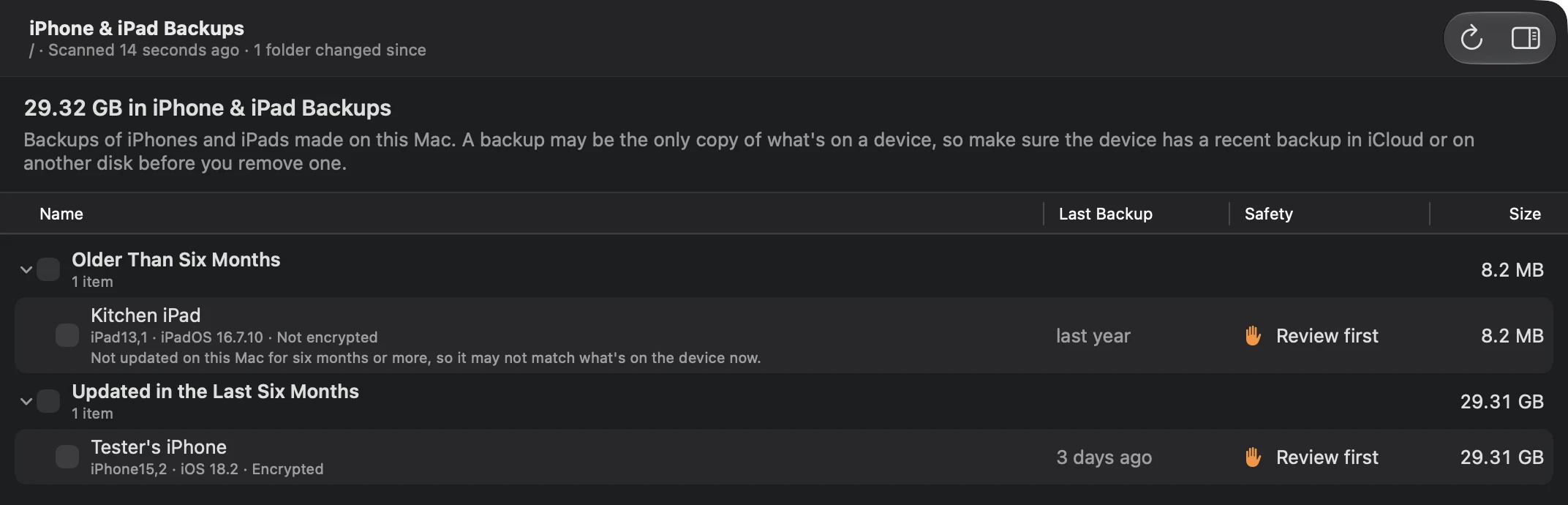
Backups are Review first: nothing is selected for you, and the review sheet repeats what a deleted backup takes with it. What you choose goes to the Trash, where you can put it back until you empty it. The Installers page lists each iPhone and iPad software file on its own, and those are Safe.
~/
Library/ Application Support/ MobileSync/ Backup/ * Backups of an iPhone, iPad or iPod touch that were made on this Mac, one folder for each device.
Review first · Moves it to the Trash
~/
Library/ iTunes/ {iPhone,iPad,iPod} Software Updates iPhone and iPad software updates
Software files that were downloaded to update or restore an iPhone, iPad or iPod touch connected to this Mac.
Safe · Moves it to the Trash
The app doesn't copy backups to other drives or change where Finder saves them; that stays with Finder, as described above. Seeing your backups is free. Moving them to the Trash is PRO, part of one $4.99 payment with lifetime access. Every Pro tool's review is free to open, so you see what would go and why before you buy.
Frequently asked questions
How do I find my iPhone backup on my Mac?
Connect the iPhone, select it in the Finder sidebar and click Manage Backups. Control-click a backup and choose Show in Finder, and Finder opens the Backup folder with that device's folder selected. Without a device, choose Go › Go to Folder in Finder and enter ~/Library/Application Support/MobileSync/Backup.
Can I back up my iPhone directly to an external hard drive on a Mac?
Not in a supported way. Finder always saves backups to the Backup folder in your home folder, and it has no setting to change that. You can copy a finished backup's folder to an external drive and delete it from the Mac, then copy it back when you need to restore.
Is it safe to delete old iPhone backups on a Mac?
It's safe when you no longer need to restore from them, such as backups of devices you sold or old archived copies. A backup may be the only copy of what's in it, so check that the device backs up to iCloud first. Delete backups in Finder's Manage Backups or in Storage settings under iOS Files.
Why is my iPhone backup taking up so much space on my Mac?
A backup holds the device's data that isn't already in iCloud. If iCloud Photos or Messages in iCloud is off, every photo, video and conversation goes into it. Backups of old devices also stay until you delete them, so several can add up.
Are iCloud backups stored on my Mac?
No. iCloud backups are stored in iCloud and don't use your Mac's storage. You can see and delete them from the Mac in System Settings: click your name, then iCloud, then Manage, then Backups.
Can I move an iPhone backup to another Mac?
Yes. Copy the device's whole backup folder, without renaming it, into the same Backup folder in your home folder on the other Mac. Finder there lists it and can restore from it, asking for the password if it's encrypted.
Do iPhone backups on a Mac include photos?
They include photos that are only on the device. Photos stored in iCloud Photos aren't included, because they're already in iCloud, and neither are photos you synced to the iPhone from your Mac.
Sources
- Locate and manage backups of your iPhone, iPad, and iPod touch · Apple
- Update, back up or restore your iPhone, iPad or iPod touch to your Mac or to iCloud · Apple
- About encrypted backups on your iPhone, iPad, or iPod touch · Apple
- Backup methods for iPhone or iPad · Apple
- Manage your iCloud storage on your Apple device · Apple
- Links and aliases: which are best? · The Eclectic Light Company