When you back up an iPhone or iPad to your Mac, the backup holds the device's settings, app data, and the messages and photos that aren't in iCloud. That can be tens of gigabytes per device. Backups of phones you sold years ago, and backups you archived before an update, stay until you delete them.
Before you delete one
A backup may be the only copy of what's in it. Check two things first:
- Does the device back up somewhere else? On the iPhone or iPad, open Settings, tap your name, then iCloud and iCloud Backup to see when it last backed up to iCloud. If it never has, and the device still matters to you, keep its latest backup on the Mac.
- Is it encrypted? An encrypted backup also holds saved passwords, Wi-Fi settings, website history, call history and Health data. Deleting it deletes those copies too.
Backups of devices you no longer have, or old archived copies of a device that backs up every day, are usually the ones to remove.
Seeing and deleting backups in Finder
- Connect the device, or any iPhone or iPad you've backed up, to your Mac with a cable, and select it in the Finder sidebar.
- In General, click Manage Backups. The list shows each backup with the device's name and the date it was made.
- Control-click a backup you don't need, choose Delete, and click OK.
You can also see backups without a device connected: choose Apple menu › System Settings, click General, then Storage, and click the information button next to iOS Files. It lists backups and software update files; select one and click Delete.
Where they live
Backups are kept in ~/, in one folder per device, named after its identifier rather than its name. Finder's list is the easy way to tell them apart. Don't move files inside a backup's folder: a partial backup can't be restored.
Software update files
When you update or restore a device from Finder, your Mac downloads that device's software, several gigabytes each time, and keeps it in ~/ (and similar folders for iPad and iPod). A file is only useful for one kind of device, and only while Apple still allows that version to be installed. Finder downloads the current version again when it needs one, so these files are safe to move to the Trash.
Messages attachments
If your iPhone's messages sync to your Mac, Messages keeps a copy of every photo, video and file in your conversations. Remove them in Messages, never in its folder:
- To remove attachments from a conversation, select it, click the contact or group icon at the top, Shift-click the items you don't need, Control-click them, and choose Delete.
- To remove old conversations automatically, choose Messages › Settings, click General, and change Keep messages.
How the app does it
The app's Apple Data › iPhone & iPad Backups page lists every backup with the device's name, model, iOS or iPadOS version, when it last backed up, whether it's encrypted and its size. It reads each backup's own information files and never opens the backup itself. Backups that haven't been updated for six months come first, with a note.
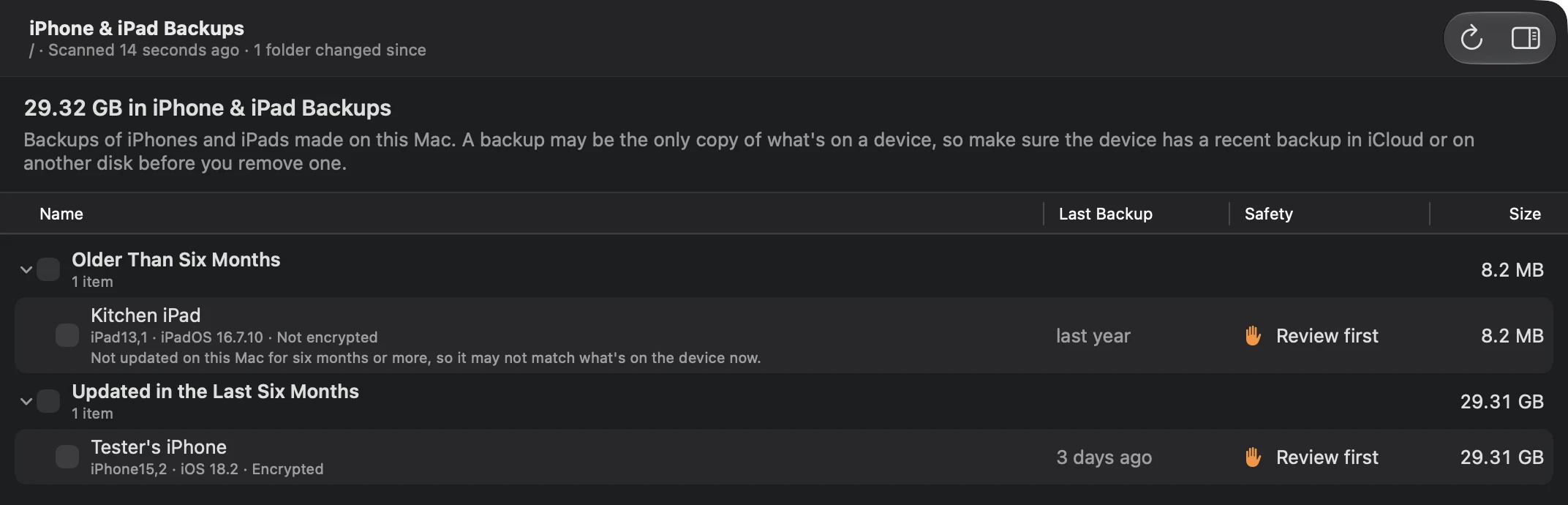
Backups are Review first: nothing is selected for you, and the review sheet repeats what a deleted backup takes with it. What you choose goes to the Trash, where you can put it back until you empty it.
The Messages page lists the largest attachments by kind, with Quick Look and Reveal in Finder, and leaves removing them to Messages, with the steps above and the iCloud warning. The Installers page lists each software update file on its own.
Seeing your backups is free. Moving them to the Trash is PRO.
Safe to delete?
The entries this guide is about, in the words the app shows. Each has its own page with its sources.
~/
Library/ Application Support/ MobileSync/ Backup/ * Backups of an iPhone, iPad or iPod touch that were made on this Mac, one folder for each device.
Review first · Moves it to the Trash
~/
Library/ iTunes/ {iPhone,iPad,iPod} Software Updates iPhone and iPad software updates
Software files that were downloaded to update or restore an iPhone, iPad or iPod touch connected to this Mac.
Safe · Moves it to the Trash
~/
Library/ Messages/ Attachments Photos, videos, audio messages and files sent and received in Messages on this Mac.
Review first · Explained only: the app shows you how