
If Xcode is taking up too much space on your Mac, the app itself is rarely the reason. Xcode is a few gigabytes.
The rest is what it collects as you work: an OS image for every simulator version you install, a simulator for every device you test on, build files for every project you open, debug symbols from every device you connect, and a copy of every build you archive.
None of that is removed when you update Xcode, so it adds up quietly over the years. In developers' reports, the total often lands between 50 and 300 GB, almost all of it outside the app.
Most of it can go, and Xcode has its own controls for the largest parts. What differs is the cost: some parts rebuild by themselves, some download again, and a few can't be made again at all.
This post goes through each part: how it grows, what removing it costs, and where Xcode 26 and Xcode 27 let you manage it. For the short version, see the guide to freeing up the space Xcode uses.
Why is Xcode taking up too much space?
Xcode isn't one folder. It's a set of tools that write to several places on your Mac, and each part grows on its own schedule. Some parts belong to Xcode, some to the simulator service behind it, and some to macOS itself.
Where does Xcode keep its files?
| Part | Where it lives | What it is |
|---|---|---|
| The app | /Applications/Xcode.app | Xcode, its compilers and SDKs |
| Simulator runtimes | /Library/Developer/CoreSimulator | One OS image per platform and version |
| Simulators | ~/Library/Developer/CoreSimulator/Devices | Each simulated device, with its apps and data |
| DerivedData | ~/Library/Developer/Xcode/DerivedData | Build output, index and logs per project |
| Device support | ~/Library/Developer/Xcode/iOS DeviceSupport | Symbols copied from your devices |
| Archives | ~/Library/Developer/Xcode/Archives | Builds you archived, with their dSYMs |
| Caches | ~/Library/Caches/com.apple.dt.Xcode | Data Xcode can fetch or make again |
Apart from the app and the runtimes, everything is in your own Library folder, mostly under ~/. That folder is the one to leave alone as a whole: it holds parts that rebuild by themselves right next to parts you can't get back. The post on everything inside ~/Library/Developer says what each folder does.
How much space is normal for Xcode?
There's no normal size, because it depends on how many projects, devices and OS versions you work with. A Mac that builds one iOS app on one simulator stays small. The post on storage for iOS development sets out a budget by kind of developer.
A Mac that has followed every Xcode release for years, with an iPhone, an iPad and an Apple Watch connected after every software update, keeps runtimes, simulators and symbol files for each of those versions.
- Simulator runtimes20–200 GB · Managed by macOS
- DerivedData5–100 GB · Safe
- Device support files5–60 GB · Safe
- Archives1–50 GB · Review first
- Xcode caches and preview simulators1–20 GB · Safe
Typical ranges from developers' reports, collected for the app's rules catalog. Simulators vary the most and are left out: from about 10 GB to, in rare cases, several hundred.
The ranges are wide because Macs differ, not because every Mac reaches the top of each one. The useful part is the order: runtimes and simulators usually lead, DerivedData follows, and the rest adds up from many smaller pieces.
Why doesn't updating Xcode free any space?
An update replaces the app and nothing else. Runtimes for older OS versions stay installed. Simulators that used them stay behind, listed as unavailable. Device support sets for older OS versions stay, and DerivedData keeps a folder for every project, including ones you'll never open again.
Even moving Xcode to the Trash removes only the app. Everything else in the table above stays where it is until you remove it.
Why doesn't Storage settings show all of it?
System Settings › General › Storage counts some of Xcode's files under a Developer category. The rest, along with other developer tools' files, usually lands in System Data, which Apple describes as files that don't fit the other categories and doesn't let you manage. The System Data guide explains what else ends up there.
Xcode's own Components settings are a better guide to the largest part. They list each installed component with the space you'd recover by removing it.
The Xcode app itself
How big are Xcode 26 and Xcode 27?
The Mac App Store lists Xcode 27 as a 3.1 GB download. That's the app with its compilers, SDKs and built-in tools. What it downloads after the first launch, simulator runtimes above all, comes on top and is usually much larger than the app.
Xcode 26 made the app smaller. At WWDC 2025, Apple said Xcode was 24% smaller that year, because simulator runtimes no longer include Intel support by default and the Metal toolchain downloads only when a project needs it. Apple's current documentation for Xcode 27 still treats both as separate downloads.
What's the difference between platform support and a runtime?
Platform support is what Xcode needs to build for a platform. A simulator runtime is the operating system a simulator runs, so you can test what you built without a device. Components settings lists them in separate sections, and each takes its own space.
Removing a runtime doesn't remove the platform's support. It stops simulators of that OS version from starting until you install the runtime again.
Should you keep more than one copy of Xcode?
Each copy of Xcode is a complete app, so a beta next to a release, or an older version kept for one project, doubles the space the app itself takes. Keep an older copy only while you still need it, for example for a project that doesn't build in the new version yet.
Xcode 27 needs macOS Tahoe 26.6 or later, while Xcode 26.6 runs on Tahoe 26.2 and later, so a Mac on a recent Tahoe can run both. When you're done with one, move it to the Trash in Finder like any other app. The runtimes, simulators and other data it used stay behind.
Which optional components can you turn off?
Choose Xcode › Settings, then click Components. Apple's documentation describes three sections:
- Platform Support: the platforms you can build apps for.
- Other Components: optional features you can turn on and off, such as the Metal Toolchain.
- Other Installed Platforms: the simulator runtimes for each kind of device and OS release.
To remove something, click the information button next to it, then click Delete or Turn Off, depending on the component. If you never build for a platform, such as tvOS or visionOS, its entries are worth checking first.
Turning off a component doesn't touch your projects. Xcode offers it again when a project needs it: if you build an app that needs the Metal Toolchain without it, a dialog appears with a Download button.
Simulator runtimes: usually the largest part
What is a simulator runtime?
A simulator runtime is the system image a simulator boots: iOS 26, watchOS 26, visionOS 26 and so on, one for each platform and version. Each one is several gigabytes; the research behind the app's catalog puts a single runtime at about 5 to 20 GB.
macOS stores each runtime as a protected disk image and mounts it as a read-only volume while it's in use. The mounted volume doesn't take extra space, so a disk tool that counts it separately is counting the same data twice.
Don't look for runtimes in Finder or try to remove them there. The files live in system folders that macOS manages, and Xcode's Components settings are the place to remove them. The page on Simulator runtimes lists every location.
Which simulator runtimes do you need?
Keep the runtimes you test on, and question the rest. A practical rule is to keep:
- the newest runtime for each platform your app supports
- the runtime for the oldest OS version you support, if you test there
- runtimes for versions your users report bugs on
Everything else is a candidate. Runtimes you installed for a beta stay after the final release ships, and runtimes for a platform you tried once stay until you remove them.
Do older runtimes still work with Xcode 27?
Not all of them. Apple's requirements table lists simulator support for iOS 17 or later in Xcode 27, and iOS 15 or later in Xcode 26.6. A runtime for iOS 15 or iOS 16 is only useful if you still run Xcode 26 or older.
To see which OS versions your projects need, select a target in Xcode and look at its minimum deployment version in the General tab. A runtime older than your oldest target is rarely worth keeping.
How do you delete a simulator runtime?
- Shut down any simulators that use the runtime.
- In Xcode, choose Xcode › Settings and click Components.
- Under Other Installed Platforms, find the runtime. Xcode shows how much space removing each component recovers.
- Click the information button next to it, then click Delete.
Simulators that use a deleted runtime become unavailable until you install it again. To get one back, click Add Platforms under Other Installed Platforms, select the versions you need and click Download & Install.
When you open a project for a platform with no runtime installed, Xcode also shows a Get button next to the run destination. A runtime is a large download, so on a slow connection it's worth keeping the one you'll need next week.
Why are runtimes smaller on an Apple silicon Mac?
By default, Xcode downloads an Apple silicon variant of each runtime to save space. It downloads the larger universal variant, which also runs on Intel, on Intel-based Macs and when you use Rosetta run destinations. If you don't need Rosetta destinations, the default is already the smaller choice.
What is the simulator dyld cache?
CoreSimulator also builds a cache of prebuilt system libraries for each runtime, in /, and builds it again after macOS updates. It keeps one folder per macOS version and runtime, and each can take several gigabytes.
The cache belongs to your installed runtimes, so it's Managed by macOS: macOS looks after it together with them. The way to make it smaller is to keep fewer runtimes, not to delete the cache. If it's missing, CoreSimulator builds it again, which slows the first simulator launch.
Simulators: the devices and everything on them
Why are there so many simulators?
Every simulator you create or run is a folder in ~/ with its installed apps, their data and its settings. Each app you test keeps whatever it saved inside the simulator: databases, downloaded media, caches. The folder grows with every device, every OS version and every app.
Simulators also outlive their runtimes. When you delete a runtime or update Xcode, simulators that used it stay on disk, listed as unavailable, and they can't start.

How do you delete simulators in Xcode 26 and Xcode 27?
Removing and erasing simulators changed in Xcode 27. The other tasks in this post are where they were.
| Task | Xcode 26 | Xcode 27 |
|---|---|---|
| Remove a simulator | Window › Devices and Simulators, Simulators, Control-click, Delete | Xcode › Open Developer Tool › Device Hub, Control-click, Remove |
| Erase a simulator's apps and data | In Simulator, Device › Erase All Content and Settings | In Device Hub, shut it down, then Device › Reset Content and Settings |
| Delete a runtime | Xcode › Settings › Components | Xcode › Settings › Components |
| Review archives | Window › Organizer, Archives | Window › Organizer, Archives |
| Find DerivedData | Xcode › Settings › Locations | Xcode › Settings › Locations |
In Xcode 27, Device Hub also opens from Manage Devices… in the run destination menu. Apple notes that its sidebar shows only the simulators you added there or chose as run destinations, so it may not list every simulator on disk.
Everything on a removed simulator is deleted: its apps, their data and its settings. Your projects aren't affected, because they live in your own folders. You can create a new simulator of the same kind, but it starts empty.
Should you erase a simulator instead of deleting it?
Often, yes. Erasing keeps the simulator, with its device type and OS version, and removes every app and its data. It suits a simulator you use every day that has filled up with test data, and it frees the space those apps took.
Deleting suits simulators you no longer use: old device types, duplicates you created by accident, and anything listed as unavailable. A simulator for a device you might test on again is cheap to create later, since it starts empty anyway.
What are the Dead folders inside simulators?
When you reinstall or remove an app in a simulator, for example by running it again from Xcode, the simulator can move the app's old data into a folder named Dead to delete later. Developers have reported that these folders aren't always emptied, even after a restart, and can reach many gigabytes.
They sit deep inside each simulator's folder, at data/. They hold only data the simulator had already discarded, so they're Safe to remove. The current data of your apps isn't stored there.
Which simulators does Xcode create by itself?
Xcode keeps three more sets of simulators, apart from the ones you run apps on:
- Preview simulators, in
~/, which show SwiftUI previews in the canvas. They hold builds of every app you've previewed, with their data.Library/ Developer/ Xcode/ UserData/ Previews/ Simulator Devices - Parallel testing clones, in
~/, which Xcode makes when tests run on several simulators at once. Clones from earlier runs can stay behind.Library/ Developer/ XCTestDevices - Playground simulators, in
~/, which run playgrounds for device platforms such as iOS.Library/ Developer/ XCPGDevices
All three are Safe. Xcode creates them again when it needs them, at the cost of a slower first preview, test run or playground run. Data your app created while previewing is removed with them.
Apple doesn't document a way to remove them from Xcode's windows. Xcode's command-line tool removes them, and that's what the app runs for you, as the last section shows.
DerivedData: build files for every project
What's inside DerivedData?
~/ holds one folder per project, named after the project with a string of letters added. Inside are the intermediate build files, the index Xcode uses for code navigation and search, and build logs. Next to the project folders are a few shared ones, such as the module cache, that every project uses.
The folder grows with each project you build and each platform and configuration you build it for. A project that builds for a simulator, a device and the Mac keeps build output for each.
Is it safe to delete DerivedData?
Yes. DerivedData is Safe: Xcode rebuilds it the next time you build or open the project, and nothing you made is lost. See Xcode DerivedData for the catalog's entry.
What it costs is time. The next build of each project is a full, slower build, and Xcode indexes the project again, so navigation and code completion take a while to catch up. Quit Xcode first, so it isn't writing to the folder while you remove it.
Should you delete one project's folder or all of it?
Start with projects you've stopped working on. Their folders stay until you remove them. Removing the whole DerivedData folder works too, but every active project then pays for a full rebuild.
Watch for duplicates. Xcode makes a separate folder for each place a project is opened from, so a project you moved, renamed or cloned again leaves its old folder behind. Two folders with the same project name usually mean one of them is stale.
Finder's Date Modified column helps here. Sort by it in list view for a rough idea of which folders Xcode hasn't used for a while.
- In Xcode, choose Xcode › Settings and click Locations.
- Click the arrow next to the Derived Data path to open the folder in Finder.
- Quit Xcode.
- Move the folders of projects you don't need, or the DerivedData folder itself, to the Trash.
Is Clean Build Folder the same thing?
No. Product › Clean Build Folder clears the build output of the project you have open, so its next build starts from scratch. It doesn't touch the folders of other projects, so it does little for disk space.
Use it when a build misbehaves. To get space back from projects you've stopped opening, go through Locations and Finder as above.
Can you move DerivedData to another drive?
Yes. In Xcode › Settings › Locations, Derived Data can point to a custom folder. Apple's Developer Technical Support has said that the three items listed there, Derived Data, Archives and Compilation Cache, can all live on an external drive.
Format that drive as APFS: the same answer warns that Mac-specific work on a FAT32 drive eventually runs into odd problems. Use a fast drive, too, since DerivedData is read and written on every build.
The Compilation Cache holds the results Xcode keeps when a project turns on the Enable Compilation Caching build setting, so it can reuse them. It has its own entry in Locations and can move in the same way.

Device support files: one set per OS version
Why does iOS DeviceSupport keep growing?
When you connect an iPhone, iPad, Apple Watch, Apple TV or Apple Vision Pro for development, Xcode copies that operating system's symbol files from it. It uses them to debug your app and to show readable names in crash reports. They go into ~/, with matching folders for watchOS, tvOS and visionOS.
Symbols are specific to each OS release, device model and processor type. Apple's own example: an iPhone on iOS 26 and the same iPhone on iOS 26.2 need different symbols. So every software update on every device you connect adds a new set, and the older sets stay.
Each folder's name shows the device model, the OS version and the build, which makes old ones easy to spot in Finder.
Which device support versions can you remove?
Keep the sets for OS versions your devices run now. Older sets are Safe in the catalog, because Xcode copies them again the next time you connect a device running that exact version.
The catch is versions you can't connect anymore. Once no device you own runs a version, its set can't be copied again, so crash reports from that version may show addresses instead of names when you open them in Xcode. If you still investigate crashes from older OS versions, keep those sets.
Apple Watch is a partial exception. Apple documents a way to download symbols for a given watchOS release without the watch, but only as a command-line step.
What happens after you remove device support files?
Nothing, until you connect a device. Then Xcode copies the symbols again before you can debug, which takes a few minutes for an iPhone and can take much longer for an Apple Watch.
Plan for that wait before a demo or a release, not during it. Removing device support right after a big OS update, when every device needs a new set anyway, costs the least.
Archives and dSYMs: the part you can't get back
What's inside an Xcode archive?
Each time you choose Product › Archive, Xcode keeps the exact app you built, with its dSYM files, in ~/, in a folder for each day. A dSYM is the companion file that turns a crash report's memory addresses into function names and line numbers.
A dSYM matches only the build it came from. Apple's documentation explains that a binary and its dSYM share a build UUID, and two builds of the same source made with a different Xcode version or settings won't match. A later build can't stand in for a deleted one.

Which archives are safe to delete?
Apple's guidance is plain: keep the archive of every build you distribute, or you may not be able to diagnose crashes in it. That's why Xcode archives are Review first in the catalog and never start checked.
| Archive | Keep it? | Why |
|---|---|---|
| A build on the App Store or in TestFlight | Keep | Crash reports from it still arrive |
| A build you shipped outside the App Store | Keep | It may be the only copy of its dSYMs |
| An older build few people still run | Your call | Back it up before you remove it |
| An archive you never uploaded or exported | Usually fine to remove | No one is running that build |
| A failed or throwaway test archive | Usually fine to remove | There's nothing to diagnose |
If you upload a build to App Store Connect with its symbols, Apple adds symbol names to that build's crash reports before they reach the Crashes organizer in Xcode. That covers App Store crashes, but Apple still says to keep the archive, and builds you shipped any other way have no such copy.
How do you remove an archive in the Organizer?
- In Xcode, choose Window › Organizer and click Archives in the sidebar.
- Find the archive in the list. Its date and version help you match it to a release.
- Control-click the archive and choose Show in Finder.
- Drag the archive to the Trash in Finder.
Going through Finder keeps the archive in the Trash until you empty it, so a mistake can be undone. Before you empty the Trash, make sure any archive you shipped has a copy somewhere else.
Can you move archives instead of deleting them?
Yes, and for shipped builds it's the better choice. In Xcode › Settings › Locations, the Archives location can point to another folder, such as one on an external drive.
Copying old archives to a backup drive also works. An archive is a bundle, so Finder copies it like a folder, dSYMs and all. Once the copy is safe, the original can go to the Trash.
Caches, logs and the smaller parts
What's in Xcode's own caches?
Xcode and its command-line build tool keep cached network data and other temporary files in ~/ and ~/. Both are Safe.
Quit Xcode before you remove them. Afterwards, Xcode may take a little longer to open, or to load some information the first time.
Can you clear the Swift package cache?
Swift Package Manager, including the package support in Xcode, keeps a shared copy of each package repository your projects depend on, with cached manifests and downloaded binaries, in ~/.
It's Safe: each project downloads its packages again the next time it resolves them, which takes longer and needs a network connection. Your package settings, such as mirrors and registries, are stored elsewhere and aren't affected.
What about simulator logs and caches?
CoreSimulator and the Simulator app write logs to ~/, with a folder for each simulator you've started. The logs are only used to investigate problems, so they're Safe to remove. You lose the history, and new logs start with the next simulator.
The cache in ~/ is Safe too. It can hold prebuilt copies of the system libraries each runtime uses, so it can take several gigabytes. The next simulator you start may take longer to boot while it's rebuilt.
Does Xcode download documentation and models too?
Recent versions of Xcode download Apple's developer documentation as a system asset, which macOS keeps with its own protected files rather than in your Library folder. macOS manages that storage, so there's nothing there for you to remove by hand.
Optional features, such as the model behind predictive code completion on Macs that support it, are managed in Components settings like everything else there. If you don't use a feature, turning it off in Components is how you get its space back.
A safe order for cleaning up Xcode
What does removing each part cost you?
Before removing anything, it helps to see the costs side by side. Some parts cost time, some cost a download, and one costs something you can't get back.
| Part | What removing it costs | How it comes back |
|---|---|---|
| DerivedData | A full build and re-index per project | By itself, on the next build |
| Caches and logs | A slower first launch or boot | By itself |
| Preview, test and playground simulators | A slower first preview or test run | By itself |
| Device support files | A wait when a device connects | Copied from a device on that version |
| Simulators | Their apps, data and settings | Only as a new, empty simulator |
| Simulator runtimes | A long download | Add Platforms in Components |
| Archives | The build and its dSYMs | Not at all |
In what order should you clean up?
Do the steps inside Xcode first, then quit it for the steps in Finder.
- Measure. Open Xcode › Settings › Components to see what each runtime takes, and check the folders above with Finder's Get Info or a disk map.
- Delete runtimes you don't test on, in Components settings.
- Remove unavailable and unused simulators, and erase the ones you keep if they're full of old test data.
- Review archives in the Organizer. Back up shipped builds, then show the ones you're removing in Finder and move them to the Trash.
- Quit Xcode and any running simulators.
- Move old projects' DerivedData folders to the Trash.
- Move device support sets for OS versions you no longer run to the Trash.
- Check your work: build a project, open a preview and connect a device. Then empty the Trash.
Runtimes and simulators you delete in Xcode don't go to the Trash; they're gone at once, so delete only the ones you're sure about. Everything you move to the Trash still takes space until you empty it.
What should you never delete?
- The whole
~/folder. It's the advice you'll see most often, and it takes your archives, your simulators' data and the device support for devices you no longer have, along with the parts that rebuild.Library/ Developer - Runtime files in system folders. macOS protects them, and Components settings is the place to remove them.
- DerivedData while a build is running. Quit Xcode first.
- Archives of builds you shipped, unless they're backed up somewhere else.
- Anything a web page tells you to paste into Terminal. Commands that delete files can't be undone, and fake cleanup guides are a known way to install malware.
Will clearing Xcode's files make your Mac faster?
No. It frees space, and that's all. Your Mac and Xcode won't run faster, and the first build, preview and device connection afterwards are slower while Xcode rebuilds what it needs.
Space is what you get back, and on a nearly full disk, that's what matters: room for a macOS update, a large download or the next Xcode release.
How do you keep Xcode from filling the disk again?
- After each major Xcode update, open Components settings and delete the previous cycle's runtimes you don't test on, betas included.
- Delete simulators you created for a one-off test when you're done, rather than keeping them for later.
- Remove a project's DerivedData folder when you finish or put away the project.
- If your internal disk is small, point Derived Data and Archives at an external APFS drive in Locations.
- Turn off optional components you don't use.
- Keep a backup of shipped archives somewhere else, so the copy in your Library folder isn't the only one.
How the app does it
Wombit explains these folders like everything else on the disk. Select one in the map or the list, and the inspector says what it is, how safe it is to remove and what removing it costs, from the catalog's entry for it. It reads only names, sizes and dates, and file names and paths never leave your Mac.
Cleanup lists them by level:
- DerivedData, device support files, Xcode's caches, the Swift package cache, CoreSimulator's caches and logs, the simulators' Dead folders, and the preview, test and playground simulators are Safe. They count toward the safe total and start checked.
- Archives are Review first and wait for you to check them.
- Simulators are Usually safe and runtimes are Managed by macOS. Both are explained, with Xcode's own steps, and the app leaves removing them to Xcode.
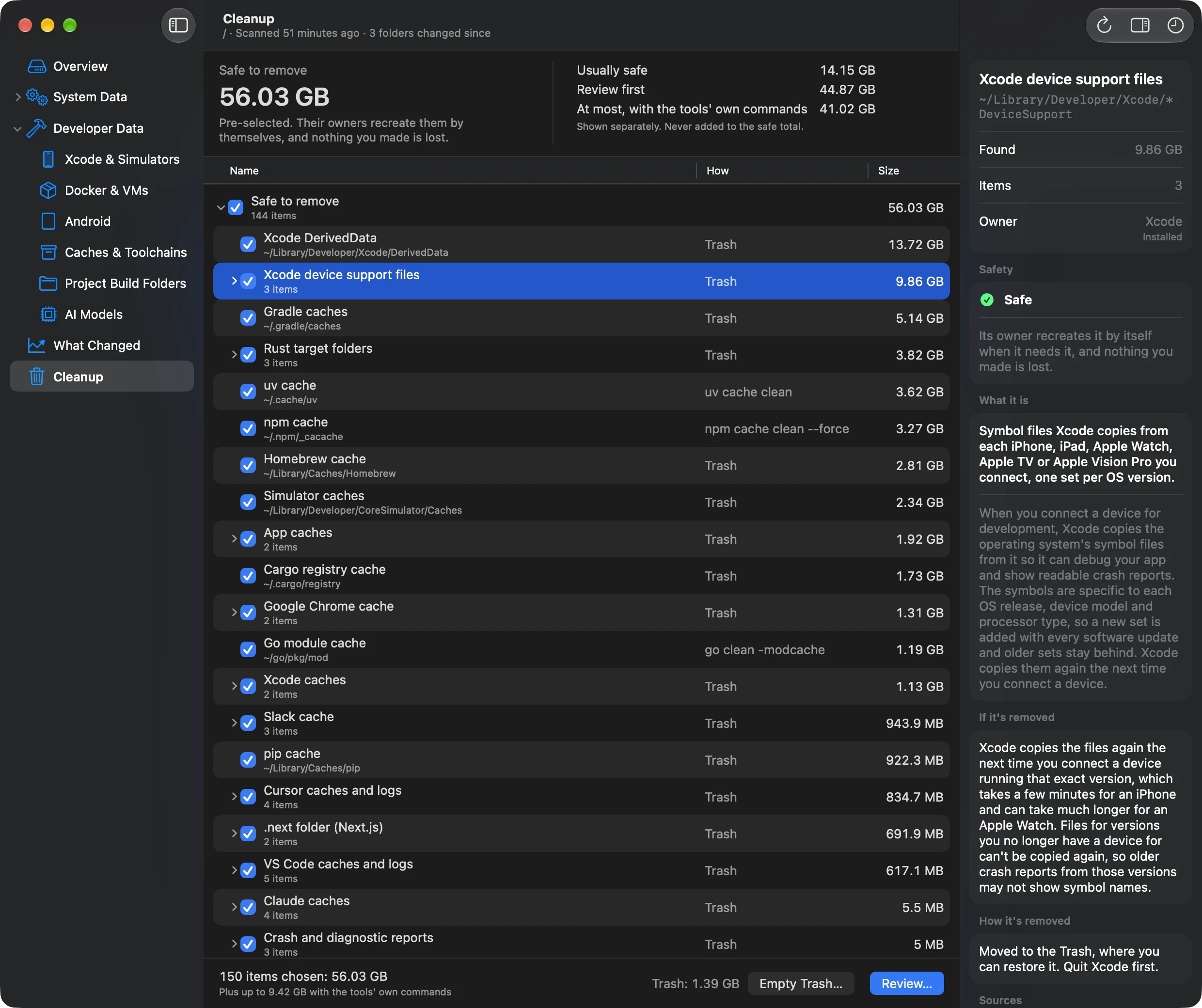
Folders go to the Trash, where you can put them back. For the preview, test and playground simulators, the app runs Xcode's own tool instead, after the review sheet. What a command removes can't be put back, and the sheet says so.
What the app runs, after you review itPRO
- xcrun simctl --set previews delete all
- The simulators Xcode made for SwiftUI previews
- xcrun simctl --set testing delete all
- The simulator clones left behind by parallel test runs
- xcrun simctl --set playgrounds delete all
- The simulators Xcode made to run playgrounds
~/
Library/ Developer/ Xcode/ DerivedData Build products, indexes and logs Xcode keeps for every project you've built.
Safe · Moves it to the Trash
~/
Library/ Developer/ Xcode/ * DeviceSupport Symbol files Xcode copies from each iPhone, iPad, Apple Watch, Apple TV or Apple Vision Pro you connect, one set per OS version.
Safe · Moves it to the Trash
~/
Library/ Developer/ Xcode/ Archives/ */ *.xcarchive Copies of each build you archived in Xcode, with the dSYM files needed to read crash reports from that build.
Review first · Moves it to the Trash
~/
Library/ Developer/ CoreSimulator/ Devices The simulated devices you run apps on from Xcode, each with its own installed apps, data and settings.
Usually safe · Explained only: the app shows you how
/
Library/ Developer/ CoreSimulator/ Images The iOS, watchOS, tvOS and visionOS system images that simulators run on, each several gigabytes.
Managed by macOS · Explained only: the app shows you how
Seeing all of this is free. Removing it is PRO, one $4.99 payment with lifetime access. Every Pro tool's review is free to open, so you see what would go and why before you buy.
Frequently asked questions
How much disk space does Xcode need?
The Mac App Store lists Xcode 27 as a 3.1 GB download, but that's only the app. Each simulator runtime adds several gigabytes, and simulators, build files and device support grow as you work. In developers' reports, Xcode's total often lands between 50 and 300 GB.
Is it safe to delete everything in ~/Library/Developer?
No. That folder mixes parts that rebuild by themselves, such as DerivedData, with parts you can't get back, such as archives of shipped builds and device support for devices you no longer have. Remove its parts one by one, using Xcode's own settings where it has them.
Does deleting Xcode remove simulators and runtimes?
No. Moving Xcode to the Trash removes only the app. Simulator runtimes, simulators, DerivedData, device support files and archives stay where they are until you remove them, so delete the runtimes you don't need in Components settings before you remove the last copy of Xcode.
Will deleting simulators delete my app's code?
No. A simulator holds only the copies of apps you installed on it and the data they saved there. Your projects and source code live in your own folders and aren't touched. Removing a simulator does delete its test data, so export anything you need from it first.
Why does Xcode fill up again after I clear DerivedData?
Xcode rebuilds DerivedData for every project you build or open, so a cleared folder starts growing with your next build. That's expected and costs nothing but time. To keep it small, remove the folders of projects you've finished rather than clearing everything again and again.
Can I put Xcode on an external drive?
Apple's Developer Technical Support has said that Xcode itself, and the Derived Data, Archives and Compilation Cache folders listed in Xcode's Locations settings, can live on an external drive formatted as APFS. Simulators and runtimes are harder to move, so they're best managed in Xcode instead.
What does Other Installed Platforms mean in Xcode settings?
It's the list of simulator runtimes on your Mac, in Xcode's Components settings: one for each platform and OS version a simulator can run. Each entry shows its size, and its information button lets you delete it. You can download it again later with Add Platforms.
Does clearing Xcode's caches make a Mac faster?
No. It frees disk space and nothing else. The first build, preview and device connection afterwards are slower while Xcode rebuilds what it removed. The space helps when the disk is nearly full, for example to fit a macOS update.
Sources
- Downloading and installing additional Xcode components · Apple
- Managing your simulated and physical devices in Device Hub · Apple
- Building your app to include debugging information · Apple
- Xcode SDKs and system requirements · Apple
- What's new in Xcode 26 (WWDC25) · Apple
- Can I move Xcode files to an external SSD safely? · Apple Developer Forums