Storage settings sorts your disk into categories: Applications, Documents, Photos, macOS and so on. System Data is what's left over: everything it can't put anywhere else. It isn't one thing, so there's no single way to delete it, and Storage settings doesn't show what's inside it.
It's often tens of gigabytes. When it's much larger, a few usual suspects account for most of it.
What's usually in it
- Time Machine's local snapshots. The most common reason System Data is huge. A snapshot holds on to files you've changed or deleted since it was taken, and no folder shows that space. See Time Machine local snapshots.
- Caches. Apps and macOS services keep data they can rebuild, in
~/and other places. It grows with use, and folders of apps you've deleted stay behind.Library/ Caches - Logs and crash reports, which macOS and apps write and mostly clear themselves.
- Virtual memory. When apps need more memory than your Mac has, macOS moves some of it to swap files on the disk, and it can save memory to a sleep image. macOS manages these; restarting clears the swap files.
- App data. Apps keep libraries, databases and settings in Application Support and in the containers of sandboxed apps. Some of it is your own work, such as notes or chat history, so it isn't junk.
- Developer files. Storage settings counts some of Xcode's files under Developer, but Docker's disk image, package managers' caches, Android's emulators and local AI models usually land in System Data.
Apple Intelligence's models belong to macOS and are counted under macOS, not System Data.
First, look at what Storage settings can show you
Choose Apple menu › System Settings, click General, then Storage. The recommendations at the top, Store in iCloud, Optimize Storage and Empty Trash automatically, are worth a look.
Categories with an information button, such as Applications, Documents, iOS Files, Messages and Trash, list their largest items; select one and click Delete, or show it in Finder. System Data has no such button: Apple doesn't offer a way to manage its contents.
Then deal with the usual suspects
- Snapshots: Time Machine removes them by itself when space is needed, but a large update or download can arrive first. Remove them now if you need the space.
- Swap: restart your Mac. Quitting apps that use a lot of memory keeps swap small.
- Caches: in Finder, choose Go › Go to Folder…, enter
~/, and quit the apps whose folders you remove. Move the folders inside to the Trash, never the Caches folder itself. Apps rebuild what they need, which can make them slower at first.Library/ Caches - Developer files: see the guides to Xcode, Docker, node_modules and local AI models.
- Apps you've removed: their leftovers sit in Application Support and Containers. See uninstalling apps properly.
What not to do
- Don't delete anything in
/Systemor/private/var. macOS protects most of it, and the rest it manages itself. - Don't move whole folders such as Application Support or Containers to the Trash. They hold every app's data, including your own.
- Don't reinstall macOS to shrink System Data. It rarely helps: the space comes back from the same apps, snapshots and caches.
- Don't paste Terminal commands from a web page to "clear System Data". Commands that delete files can't be undone, and fake cleanup guides are a known way to install malware.
Why the number keeps changing
Storage settings works its figures out in the background, so they can change while you watch. Snapshots age out every hour, caches grow and shrink, and swap resets when you restart. A System Data figure that drops by itself overnight usually means snapshots or swap were cleared.
How the app does it
The app's System Data page splits the one number into named buckets: local snapshots, app caches, logs, swap and sleep image, macOS's caches and installers, app data and developer files, each with what it is and how it's removed. It also shows how much it couldn't explain, instead of hiding it in a total.
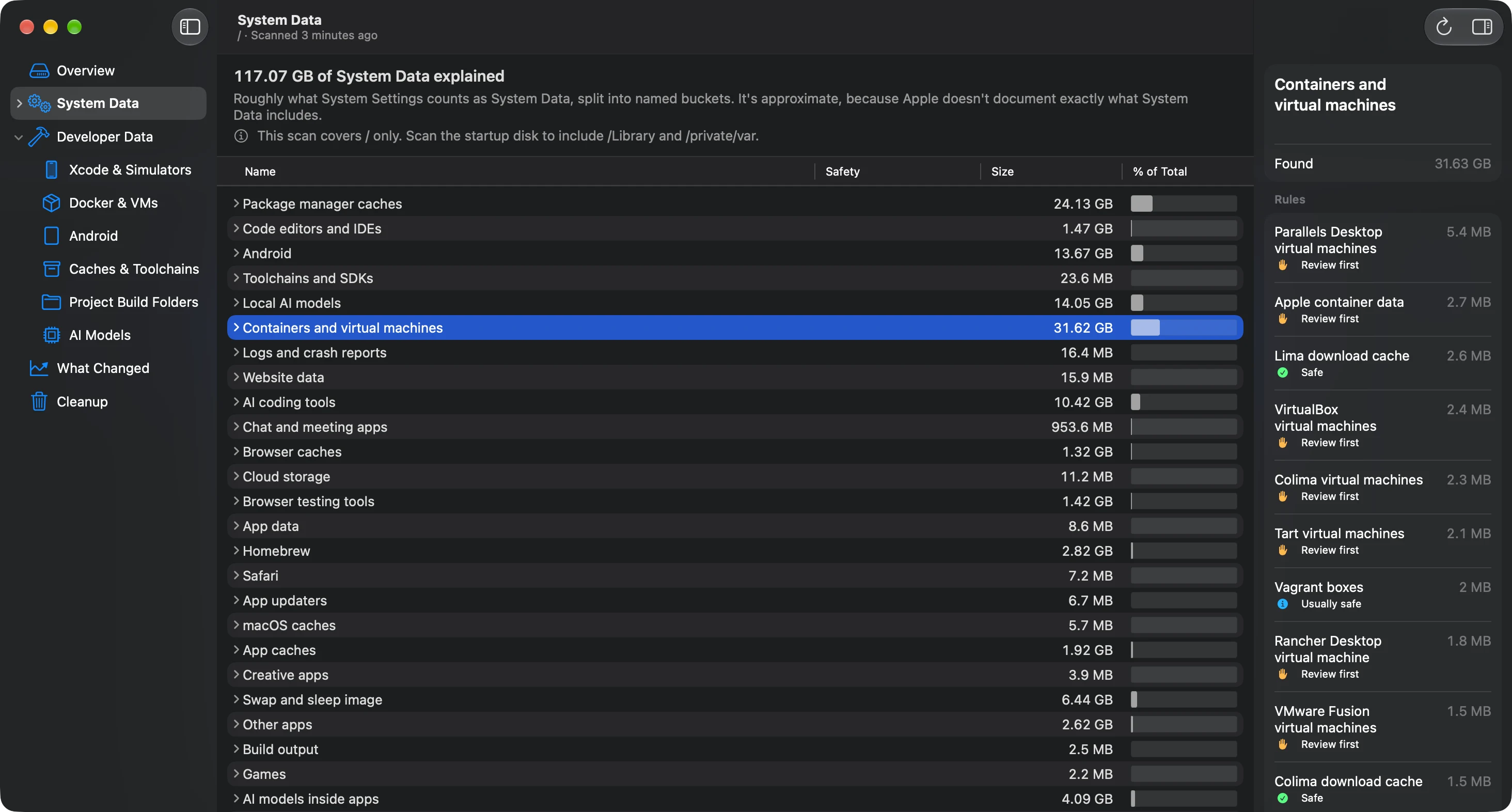
Every item comes from a catalog entry with its sources. Only Safe items start checked in the Cleanup checklist; the rest wait for you, and anything macOS manages is explained, never moved. Items go to the Trash, where you can put them back.
Seeing System Data explained is free. Cleaning it up is PRO.
Safe to delete?
The entries this guide is about, in the words the app shows. Each has its own page with its sources.
Hourly snapshots of your startup disk that Time Machine keeps on the disk itself, so you can restore files even without your backup disk.
Managed by macOS · Runs tmutil for Time Machine's own snapshots, through the helper
~/
Library/ Caches/ * Data that apps and macOS services keep so they can load things faster. Apps create it again when they need it.
Safe · Moves it to the Trash
~/
Library/ Logs/ * Log files that apps and macOS services write in your Library folder to record what they do.
Safe · Moves what's inside it to the Trash
/
private/ var/ vm Disk space macOS uses as extra memory when RAM runs low, and a copy of memory it can save before a long sleep.
Managed by macOS · Explained only: never removed
/
System/ Library/ AssetsV2/ com_apple_MobileAsset_UAF_FM_* The on-device language and image models that Apple Intelligence features use.
Managed by macOS · Explained only: never removed
~/
Library/ Containers/ * The private folder a sandboxed app, such as most apps from the App Store, uses as its own home for data, settings and caches.
Review first · Explained only: the app shows you how
~/
Library/ Developer/ Xcode/ DerivedData Build products, indexes and logs Xcode keeps for every project you've built.
Safe · Moves it to the Trash
~/
Library/ Containers/ com.docker.docker/ Data/ vms/ 0/ data/ Docker.raw Docker Desktop disk image (Docker.raw)
The virtual disk where Docker Desktop keeps all your images, containers, volumes and build cache.
Usually safe · Runs docker --context desktop-linux builder prune --force