Finder says one thing, Storage settings another, Disk Utility a third, and adding up your folders gives a fourth. None of them is broken. They count different things, and knowing which is which tells you what number to trust before a large download or a macOS update.
What each one counts
| Where | What its "available" or "free" means |
|---|---|
| Finder (the status bar, or Get Info on the disk) | Free space plus purgeable space: what macOS says it can make room for |
| Storage settings | Used and available space, sorted into categories, worked out in the background |
| Disk Utility (the Info button) | Used, purgeable and free space, listed separately |
| Adding up folders | Only the files you can see, each counted in full |
The number to trust before something big is Disk Utility's free space, or Finder's figure minus the purgeable part. Finder's figure is what macOS can free, not what's free right now.
The reasons they disagree
Purgeable space. Finder counts space macOS can free when it needs to, such as local snapshots and iCloud Drive files it can download again, as available. A large copy can still fail before macOS frees it. See purgeable space.
Local snapshots. Time Machine keeps hourly snapshots on the disk itself. They hold space no folder shows, which is why deleting files sometimes frees nothing, and why folders add up to less than "used". See Time Machine local snapshots.
APFS clones. When you copy a file on the same disk, macOS can make a clone that shares the original's space until one of them changes. Two 10 GB copies can take 10 GB, but adding up file sizes counts 20.
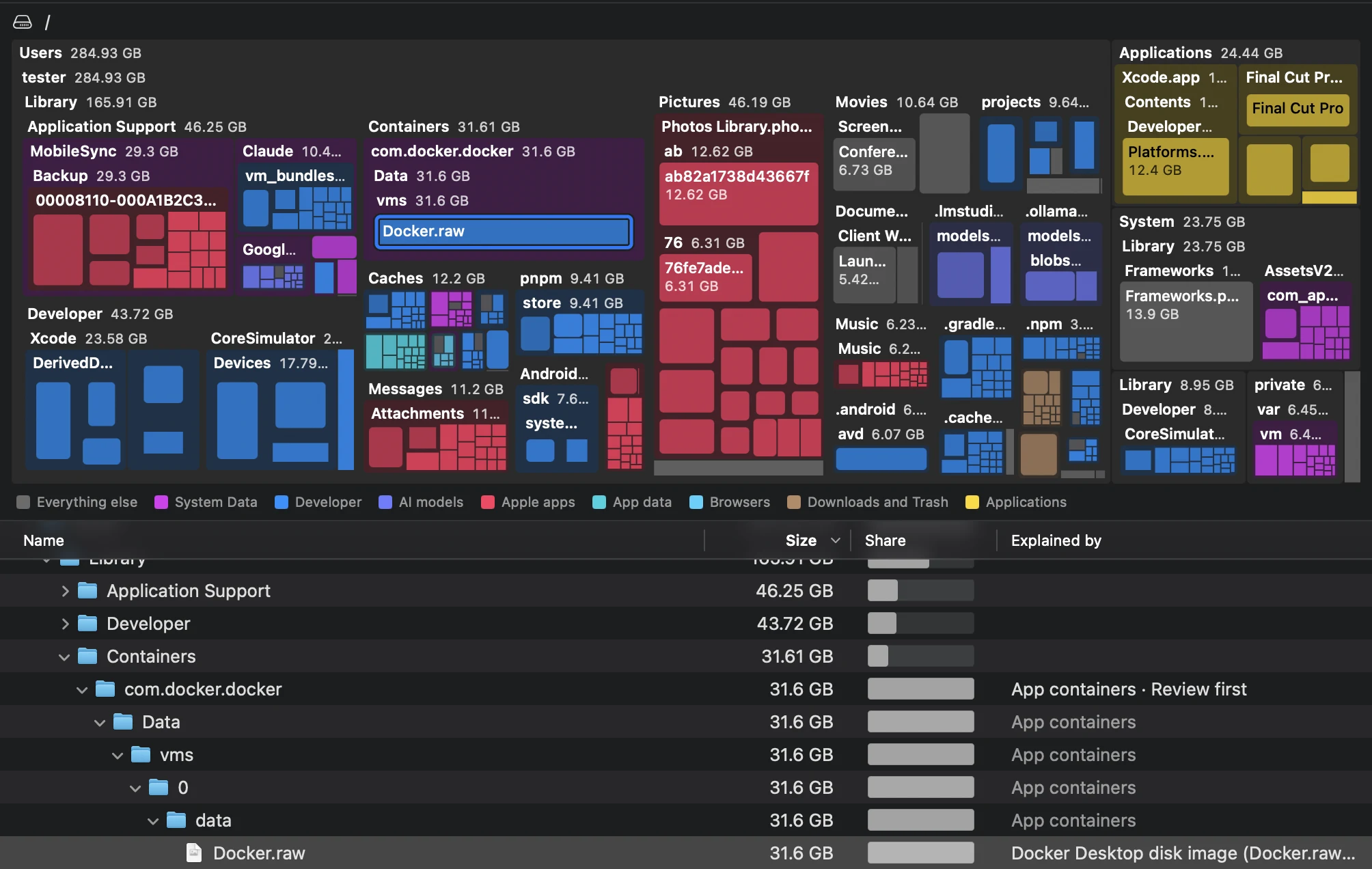
Sparse files. Some files say they're far larger than the space they take. Docker's disk image is the best-known: it can report the size of its whole virtual disk while taking a fraction of it. See Docker.raw.
Hard links. One file can have two names in two folders. It takes its space once, but a tool that adds up folders may count it twice.
Folders you can't read. Without Full Disk Access, an app can't measure Mail, Messages, other apps' data and some protected folders, so its totals come up short. macOS's own system files are on a separate, sealed volume and aren't in your folders at all.
System Data. Storage settings puts caches, logs, snapshots, virtual memory and many developer files under one number, and doesn't show what's inside it. See why System Data is so large.
Gigabytes. macOS counts a gigabyte as 1,000,000,000 bytes, as drive makers do. Some tools and command-line programs count 1,073,741,824 bytes, so the same disk looks about 7% smaller in them.
Before a macOS update
macOS updates need room to download and to install, often around twice the download; Apple publishes a figure only for some major upgrades. If an update says there isn't enough space while Finder shows plenty, the space is probably purgeable: snapshots or iCloud downloads that macOS hasn't cleared yet. Remove Time Machine's local snapshots, or use Remove Download on iCloud Drive files you don't need on this Mac, then try again.
How the app does it
The app's space meter shows the available space, then a bar of what the scan found in files, what's in no file it could read, swap, other volumes, file system bookkeeping and free space. Why the numbers differ, beside it, explains the purgeable space and the local snapshots behind the gaps. Its scan counts hard links and fully shared APFS clones once, the way macOS counts space, and shows both the size a sparse file claims and the space it takes. Folders it couldn't read are listed, never quietly skipped.
The menu bar item keeps the available space in view, and checks whether a waiting macOS update fits before you start it.
All of this is part of the free analyzer.
Safe to delete?
The entries this guide is about, in the words the app shows. Each has its own page with its sources.
Hourly snapshots of your startup disk that Time Machine keeps on the disk itself, so you can restore files even without your backup disk.
Managed by macOS · Runs tmutil for Time Machine's own snapshots, through the helper
~/
Library/ Mobile Documents The iCloud Drive files that are downloaded to this Mac, including the iCloud folders that apps use.
Usually safe · Explained only: the app shows you how
~/
Library/ Containers/ com.docker.docker/ Data/ vms/ 0/ data/ Docker.raw Docker Desktop disk image (Docker.raw)
The virtual disk where Docker Desktop keeps all your images, containers, volumes and build cache.
Usually safe · Runs docker --context desktop-linux builder prune --force