
To clear System Data on a Mac, work through it in order: restart, remove Time Machine's local snapshots if you need the space now, clear app caches and logs, then deal with developer files, local AI models and what deleted apps left behind. Every step goes through Finder, System Settings, Disk Utility or the app that made the files.
System Data isn't a folder, so there's no button that empties it. It's what Storage settings has left after counting everything else, and Apple says you can't manage it there. What you can do is find its largest parts and remove each one the way its owner expects.
The plan below starts with steps that cost little and often free the most, and ends with the ones that need a decision from you. Stop as soon as you have the room you need. Tens of gigabytes of System Data is normal, and clearing it to zero isn't possible or useful.
For what System Data is made of, the System Data guide lists its usual parts. This post is the plan of action: what each step frees, what it costs and how to do it.
Before you start: measure, then set a target
A cleanup goes better with a number to compare against. Without one, it's hard to tell which step helped, and easy to keep deleting after the problem is solved.
Where do you see how big System Data is?
Choose Apple menu › System Settings, click General in the sidebar, then click Storage. The bar at the top shows used and available space, and System Data is one of the categories listed below it.
Wait a minute or two before you read it. Storage settings works its figures out in the background, so they can change while the window is open. Apple's description of System Data says its size varies with the state of your Mac.
On macOS Monterey and earlier, the same view is in Apple menu › About This Mac: click Storage, then Manage. Older versions called the category Other.
What does Apple say System Data holds?
Apple's Storage settings help describes it as files that don't fit the other categories, mainly system logs, caches, virtual memory files, temporary files, fonts, app support files and plug-ins. It also says you can't manage its contents there, and that data outside the other categories is managed in Finder or in the apps that created it.
That last sentence is the whole method. Each part of System Data has an owner: macOS, Time Machine, an app or a developer tool. The safe way to shrink it is to go to each owner in turn.
Note two numbers, and check Disk Utility
Write down the System Data figure and the available figure at the top of Storage settings. Then open Disk Utility from the Utilities folder in Applications, select your startup volume in the sidebar, and look at its available space and how much of it is purgeable.
Purgeable space is space macOS can free by itself when it's needed, such as Time Machine's local snapshots. Apple says your Mac counts the space used by snapshots as available. So a large System Data figure can sit next to a healthy available figure, and that's not a fault.
What target should you aim for?
Apple doesn't publish a single free-space figure. Decide what you need the room for. An installer or app that refuses to run usually says how much space it needs, and that number is your target.
If you're clearing space for general headroom, work through the first four steps, then check again. On many Macs that's enough, and the later steps are only worth their cost when it isn't.
Should you back up first?
Most steps here move items to the Trash, where you can put them back until you empty it. A few can't be undone: removing local snapshots, removing things in a tool's own app, such as Docker images or AI models, and emptying the Trash. A current backup on an external disk covers you for all of them.
Removing local snapshots doesn't touch the backups on your Time Machine disk, so a backup made today survives every step in this post.
How to clear System Data on a Mac: the plan at a glance
Here's the whole plan in one place. The typical sizes are ranges seen on Macs that have these items at all; many Macs have far less, and some have none.
| Step | What it clears | Typical size | What it costs |
|---|---|---|---|
| 1. Restart | Swap files | 1–20 GB | A few minutes |
| 2. Local snapshots | Time Machine's hourly snapshots | Varies most | Restore points on this Mac |
| 3. App caches | ~/Library/Caches and containers' caches | 2–30 GB | Slower first launches, downloads |
| 4. Logs and reports | ~/Library/Logs and crash reports | 0.1–5 GB | History for troubleshooting |
| 5. Developer files and models | DerivedData, Docker, AI models | 5–150 GB | Rebuilds and downloads |
| 6. Removed apps' leftovers | Application Support, Containers | 0.1–15 GB per app | May hold your data |
| 7. Careful fixes | Spotlight index, system caches | Varies | Hours of rebuilding |
- Swap and sleep image1–20 GB · Managed by macOS
- App caches2–30 GB · Safe
- System-wide caches1–10 GB · Usually safe
- Logs and crash reports0.1–5 GB · Safe
- Xcode DerivedData5–100 GB · Safe
- Docker Desktop's disk10–100 GB · Usually safe
- Local AI models20–150 GB · Review first
- One removed app's leftovers0.1–15 GB · Review first
Typical ranges on Macs that have these items, from the research behind the app's catalog. Local snapshots and the Spotlight index are left out: their size depends too much on how you use your Mac to give a typical range.
Why this order?
The first steps use macOS's own mechanisms, so you aren't deleting files by hand, and the only thing you give up is restore points. Caches and logs come next because their owners make them again. Developer files and models come back too, but only after a rebuild or a download that can take a while.
Leftovers of removed apps come late because they may be the only copy of something you made. The careful fixes come last because they take hours to settle and rarely matter on a Mac that isn't misbehaving.
What doesn't count as System Data?
Several large things have categories of their own, so removing them doesn't change the System Data figure. iPhone and iPad backups are counted under iOS Files, Messages attachments under Messages, and old macOS installers under Applications.
Apple Intelligence's models count under macOS, and the Photos library under Photos. The Trash has its own category too, which matters here: what you move to the Trash leaves System Data and shows up under Trash until you empty it.
Step 1: Restart your Mac
It's the cheapest step, and on a Mac that hasn't been restarted in weeks it can be one of the more useful ones.
Does restarting clear System Data?
Partly. When apps need more memory than your Mac has, macOS moves some of it to swap files on the startup disk, and those files count in System Data. Restarting clears them.
To see how much swap you're using before you restart, open Activity Monitor from the Utilities folder, click Memory, and look at Swap Used at the bottom of the window. Apple describes it as space on your startup disk used to swap unused files to and from memory.
Why does swap fill up again?
Swap comes back whenever apps ask for more memory than the Mac has. Many browser tabs, virtual machines, video editing and large builds all push it up, and a Mac with less memory tends to use more of it.
Quitting apps that use a lot of memory keeps swap small. Don't remove swap files yourself: macOS is using them, and removing them can make your Mac stop responding or restart unexpectedly.
What about the sleep image?
macOS can save the contents of memory to a sleep image, so your work is safe while the Mac sleeps for a long time. It lives next to the swap files, and macOS creates, sizes and removes it. Leave it alone.
Why does System Data drop overnight by itself?
Several parts of it shrink on their own. Time Machine keeps each hourly snapshot for 24 hours. When space is needed, macOS clears caches and logs it knows are safe to delete, including temporary database files, interrupted downloads, staged macOS and app updates, and Safari website data.
So if System Data looked large yesterday and smaller this morning, macOS has probably done some of this plan for you. Check the figure again before moving on.
Step 2: Remove Time Machine's local snapshots
If you back up with Time Machine, your Mac keeps snapshots on its own disk: about one an hour, each kept for 24 hours, plus one of your last successful backup and one before each macOS update. On a Mac where large files change often, they can be the largest part of System Data.

How do you know snapshots are taking space?
A snapshot holds on to the files you've changed or deleted since it was taken. That's why deleting a large file sometimes frees nothing at first: the most recent snapshots still have it.
To see them, open Disk Utility, choose View › Show All Devices, then View › Show APFS Snapshots. Select the volume that holds your files, usually named Macintosh HD – Data. Its snapshots appear in a table at the bottom of the window, and Time Machine's have names that start with com.apple.TimeMachine and include a date.
The table can show Private Size and Cumulative Size columns. Private Size is that snapshot's own size, but how much removing it frees is hard to predict until it's gone.
Do you need to remove them at all?
Often not. Apple says snapshots don't use the space needed for tasks like downloading files, copying files or installing software, that Time Machine stores them only on disks with plenty of free space, and that it deletes them as they age or when space is needed.
Remove them yourself when an installer or app still says there isn't enough room, or when you want the System Data figure to reflect what's really there before you look further.
How to remove all local snapshots at once
On macOS Ventura and later, including macOS Tahoe and macOS Golden Gate:
- Choose Apple menu › System Settings, click General in the sidebar, then click Time Machine.
- Click Options.
- Choose Manually from the Backup Frequency pop-up menu, then click Done.
- Wait a few minutes while Time Machine removes the local snapshots.
- Open Options again and set Backup Frequency back to what it was.
On macOS Monterey and earlier, open System Preferences › Time Machine and deselect Back Up Automatically, or turn Time Machine off with its switch, depending on what you see. Turn it back on after a few minutes. Time Machine remembers the backup disks it was using.
How to remove one snapshot in Disk Utility
- Open Disk Utility and choose View › Show APFS Snapshots.
- In the sidebar, select the volume.
- In the table at the bottom, select one or more snapshots.
- Click the Delete Snapshot button.
- Choose View › Hide APFS Snapshots when you're done.
When you remove snapshots one at a time, keep the newest Time Machine snapshot. Howard Oakley of Eclectic Light notes that Time Machine needs it for the next backup, and that it's usually the smallest anyway.
What do you lose?
You can no longer restore files from the snapshots you removed. Backups on your Time Machine disk aren't affected, so anything that was backed up there can still be restored.
The snapshot macOS takes before an update is worth a thought. If you've just updated and anything feels wrong, keep it until you're happy with the new version.
Will they come back?
Yes. While Time Machine backs up automatically, it keeps making a snapshot about every hour. That's the design: removing them is a one-off way to get space back now, not a lasting change.
If you rely on Time Machine, leave backups on automatic. Snapshots are cheap insurance, and the guide to Time Machine local snapshots explains how they behave in more detail.
Step 3: Clear app caches
Apps keep caches so they can load things faster, in your Library folder and inside the containers of sandboxed apps. Apple's guidelines say an app should keep only data there that it can recreate, so this is the safest place to free real space by hand.
Which caches are worth clearing?
Look for three kinds: caches of apps you've removed, caches that are much larger than the rest, and caches of apps that store media, such as browsers, music and video streaming apps, and chat apps. The first kind never comes back.
Small caches aren't worth the effort. Hundreds of folders of a few megabytes each add up to little, and each one can make its app slower the next time it starts.
How do you clear app caches in Finder?
- Quit the apps whose caches you plan to remove, including any icon they have in the menu bar.
- In Finder, hold down the Option key and choose Go › Library, then open Caches.
- Choose View › as List, then View › Show View Options, and select Calculate all sizes. Click the Size column heading to put the largest folders first.
- Each folder is usually named after an app or its identifier, such as com.developer.appname. Select one and press the Space bar to Quick Look it, or choose File › Get Info.
- Move the folders you've chosen to the Trash. Never move the Caches folder itself.
- Open those apps again, check they work, then empty the Trash.
Calculating sizes takes a while in a large folder, and the figures fill in as Finder finishes each one.
What about caches inside app containers?
Sandboxed apps, which include most apps from the App Store, keep their caches inside their own container in ~/. Each container has its own Library folder with a Caches folder in it. Apps from the same developer that share data also get a Caches folder in their group container.
Since macOS Big Sur, Finder shows many containers by the app's name rather than their real folder names, so several folders can appear with the same name: one for the app, others for its extensions. Quit the app, open its container, then Data › Library › Caches, and move what's inside to the Trash.
Should you use the app's own setting instead?
When an app has one, yes. Browsers clear their caches in their own settings, and many music, video and chat apps have a button to clear downloaded or cached content. The app knows which files are safe to drop, and it won't be confused by files vanishing while it runs.
Be careful with anything called website data or cookies. That isn't a cache. Apple warns that removing it can sign you out of websites and change how they behave.
What does clearing caches cost?
Apps rebuild what they need, so they can open or load content more slowly at first, and some download data again. Clearing caches frees space; it doesn't make a Mac faster.
Caches also grow back as you use your apps. That's expected, and it's why clearing the caches of apps you still use is a one-off gain, while clearing those of removed apps is permanent.
What about the caches in the Library folder at the top of the disk?
/ holds caches shared by every user, kept by helper tools and macOS services. Most items there belong to the system or an administrator, so moving them needs an administrator's password, and a service may only rebuild its cache after a restart.
Only remove folders there that you can name, such as those of an app you've removed. Restart your Mac afterwards so system services start with fresh caches.
Step 4: Logs and crash reports
Logs record what apps and services do, and crash reports record what went wrong. Nothing on your Mac needs old ones to work, but they're usually small: a few hundred megabytes to a few gigabytes.
Where do logs and crash reports live?
| Location | What's there | Level | How to remove |
|---|---|---|---|
~/Library/Logs | Apps' and services' logs for your account | Safe | Files inside, in Finder |
~/Library/Logs/DiagnosticReports | Crash, hang and resource reports for your apps | Safe | Console or Finder |
/Library/Logs | Logs from helper tools, installers and services | Usually safe | Finder, with an administrator's password |
/private/var/log | macOS's text logs, such as install.log | Managed by macOS | Leave it: macOS rotates them |
/private/var/db/diagnostics | The unified log | Managed by macOS | Leave it: macOS limits its size |
How do you remove crash reports with Console?
Open Console from the Utilities folder in Applications. In the sidebar under Reports, you'll see Crash Reports, Spin Reports, Log Reports and Diagnostic Reports.
Select a report, then choose File › Move to Trash. Reports about your own apps are yours to remove. Reports about the whole system are visible to administrators only.
How do you clear old logs in Finder?
Hold down Option, choose Go › Library, and open Logs. Use list view with Calculate all sizes to find the largest folders. Move the log files inside a folder to the Trash, and leave the folders themselves: some programs, including background jobs, expect them to exist.
What if one log keeps growing?
A log that grows by gigabytes usually means something is failing over and over and recording it each time. Clearing the file buys time, but it fills up again.
Find the app it belongs to from the folder or file name. Updating that app, changing the setting that misbehaves, or removing the app is the real fix. Its developer can usually tell you what the messages mean.
Which logs should you leave alone?
The unified log, where macOS and apps record most of their messages, is kept to a steady size by macOS, which removes the oldest entries as new ones arrive. The text logs in / are rotated on a schedule. Removing either loses troubleshooting history and frees nothing for long.
Step 5: Developer files and local AI models
On a developer's Mac, this step is often where most of System Data turns out to be. Build tools, containers and models don't fit Storage settings' categories, so they usually land in System Data, although Storage settings can show a Developer category for some of Xcode's files.
Xcode
Xcode's build files, simulators, simulator runtimes and device support files can take tens to hundreds of gigabytes. Remove runtimes in Xcode › Settings › Components, simulators in Xcode, and DerivedData in Finder with Xcode closed.
DerivedData is Safe: Xcode rebuilds it, at the cost of a slower next build. Archives of builds you shipped are worth keeping. Why Xcode takes up so much space goes through each part and its cost.
Docker Desktop
Docker Desktop keeps every image, container and volume in one disk image file, Docker.raw, inside ~/. It counts in System Data, and it's described in the library under Docker Desktop disk image (Docker.raw).
Don't delete the file: it takes your volumes' data with it. Remove images and containers you don't need in Docker Desktop. To cap how large it can grow, lower Disk usage limit in Settings › Resources › Advanced; lowering it deletes all containers and images.
Package manager caches
npm, pnpm, Yarn, pip, uv, Go, Gradle, CocoaPods and Homebrew keep caches of everything they download, often in ~/ or in hidden folders in your home folder. Each tool downloads what it needs again.
Most of these tools have their own cleanup command and no app with a button for it. A few caches are plain folders, such as Homebrew's in ~/, which Finder can move to the Trash like any other cache.
Local AI models
A local language model takes a few gigabytes for a small one and tens of gigabytes for a large one, and every model you try stays until you remove it. Ollama keeps its models in a hidden folder, ~/, which usually lands in System Data.
Models are Review first: they come back only by downloading again. Remove them in the tool that downloaded them, never in Finder. How to delete Ollama models shows how for Ollama.
How do you see hidden folders in your home folder?
Developer tools often store their data in folders whose names start with a period, such as .ollama, .docker or .cache. Finder hides those. In your home folder, press Shift-Command-Period to show them, and again to hide them.
Seeing them is useful for measuring. Removing them in Finder usually isn't the right move: use each tool's own way.
Step 6: What removed apps left behind
Dragging an app to the Trash removes the app and nothing else. Its data folders, caches and helpers stay, sometimes for years, and most of them count in System Data.

Where do leftovers live?
| Folder in your Library | What an app keeps there | Level |
|---|---|---|
Caches | Data it can rebuild or download again | Safe |
Logs | Records of what it did | Safe |
Application Support | Libraries, databases, downloads, projects | Review first |
Containers | A sandboxed app's private home | Review first |
Group Containers | Data shared by one developer's apps | Review first |
Caches and logs of a removed app can go, as in steps 3 and 4. The last three can hold things you made in the app, such as a library, a chat history or projects saved only inside it. That's why they need a look first.
How do you check a leftover folder before removing it?
- Make sure the app is really gone. Check Applications, and for a group container, check you no longer use any app from the same developer.
- Open the folder and look for documents, databases, projects or downloads you'd want back.
- Use Quick Look on anything you don't recognise.
- If there's any doubt, copy the folder to an external drive first.
- Move the folder to the Trash, and leave it there for a while before you empty it.
If you can't tell what a folder belongs to, leave it. Folders named after macOS or Apple services belong to macOS, even when they look unused.
Turn off what a removed app left running
Open System Settings, click General, then Login Items & Extensions. Select items that belong to an app you've removed and click the Remove button below the list, and turn off background items that belong to it.
This frees little space, but it stops helpers from running for an app that isn't there. The guide to uninstalling apps properly covers every place an app can leave something.
Don't clear preferences or saved state
App preferences and saved window state aren't caches. They're tiny, so removing them frees almost nothing, and they only reset apps you still use. Leave the Preferences and Saved Application State folders alone.
Step 7: The careful ones
These steps fix specific problems. They're worth knowing, but most Macs never need them.
What if the Spotlight index is huge?
Spotlight keeps an index of each disk in a hidden folder at its top, and it's normally a small part of the disk. Some people have seen it grow to well over 100 GB when indexing goes wrong. Rebuilding replaces it with a fresh one.
- Choose Apple menu › System Settings, then click Spotlight in the sidebar.
- Click Search Privacy at the bottom. Some versions call it Spotlight Privacy.
- Drag your disk, such as Macintosh HD, into the list, or add it with the add button.
- Wait a few seconds, select the disk in the list, and click the remove button.
- Click Done. Spotlight indexes the disk again.
Searches are incomplete until indexing finishes, which can take hours on a large disk. Only rebuild when you have a reason to think the index is the problem.
When does safe mode help?
Apple suggests starting up in safe mode when you need room for something like a macOS update. Safe mode clears some system caches, such as font caches and the kernel cache, which macOS creates again as needed. It also checks your startup disk.
On a Mac with Apple silicon, shut it down, then press and hold the power button until you see the startup options. Select your startup disk, press and hold Shift, and click Continue in Safe Mode.
On an Intel-based Mac, turn it on and immediately press and hold Shift until the login window appears. Either way, choose Apple menu › Restart to leave safe mode. The space it frees is a one-off: the caches come back.
Old versions of documents
Apps such as Pages, TextEdit and Preview save earlier versions of documents as you work, in a hidden folder that macOS manages. It's usually small, but it grows when you edit large documents often.
To remove a version, open the document and choose File › Revert To › Browse All Versions. Show the version you want to remove, move the pointer to the top of the screen, and choose File › Revert To › Delete This Version. Removed versions can't be recovered.
Pending software updates
Software Update keeps downloads in a protected folder until an update is installed, and an update that didn't finish can leave files behind. Install pending updates in System Settings › General › Software Update, and macOS removes the files it no longer needs.
What to leave alone
Some parts of System Data look like targets and aren't. macOS manages them, protects them, or is using them while your Mac runs.
| Location | What it is | Why leave it |
|---|---|---|
/private/var/vm | Swap files and the sleep image | In use; restart instead |
/private/var/folders | Each user's temporary items and caches | Apps can lose work in progress |
/private/tmp | Short-lived files shared by all users | macOS clears old items daily |
/private/var/db/oah | Rosetta's translated Intel apps | Protected; update Intel apps instead |
/System/Library/AssetsV2 | Parts of macOS downloaded later | Protected; macOS manages them |
~/Library/Application Support itself | Every app's data | Holds your own work |
Docker.raw | Docker's images, containers and volumes | Clean up in Docker Desktop |
Why not delete the Library or Caches folder as a whole?
Moving the whole Caches, Application Support or Containers folder to the Trash takes every app's data with it, including settings and things you made. Apps also expect these folders to exist. Remove single items inside them, after checking.
Why not reinstall macOS?
Reinstalling to shrink System Data rarely helps for long. The space comes back from the same apps, snapshots and caches, and restoring everything takes time. It's a fix for a damaged system, not a full disk.
Why not paste a Terminal command?
Many guides to clearing System Data end in a command to paste. Commands that delete files can't be undone, a typo can remove far more than intended, and fake cleanup guides are a known way to install malware. Every step in this post works through Finder, System Settings, Disk Utility and the apps themselves.
When System Data is still large
If you've worked through the steps and System Data has barely moved, the space is usually in one of a few places Storage settings can't name.
Look for large items Storage settings can't place
Virtual machines keep a whole computer's disk in one place; UTM's, for example, live inside its container in your Library folder. Models, containers and datasets sit in hidden folders in your home folder. Large files saved inside an app's own folder in Library count in System Data too.
To find them, open your home folder in list view, show hidden items with Shift-Command-Period, turn on Calculate all sizes, and sort by size. Then open the largest folder and repeat. A few levels down, the culprit usually has a name.
Give the figures time to settle
Storage settings recalculates in the background, and items in the Trash count as Trash until you empty it. After a big cleanup, empty the Trash, wait, and reopen Storage settings before you judge the result.
Snapshots also matter here. A snapshot made before your cleanup still holds the files you removed, so the space may only come back once it ages out, or once you remove snapshots as in step 2.
An example of the plan in practice
Say a MacBook Air shows a System Data figure much larger than its owner expected, and a macOS update won't install. They restart first, and the figure drops a little as swap clears. Disk Utility shows Time Machine snapshots, so they set Backup Frequency to Manually for a few minutes and back.
That makes room for the update. Afterwards they clear the caches of two apps they no longer use, find an old virtual machine in a hidden folder, and copy it to an external drive before removing it. They leave Application Support alone, because nothing there is from an app they've removed.
How do you keep System Data from creeping back?
- Restart every week or two, so swap starts fresh.
- Remove apps you no longer use, with their leftovers, rather than only the app.
- On a developer's Mac, remove build folders, simulators and models when a project ends.
- Keep large virtual machines and archives on an external drive.
- Check Storage settings every month or two and compare System Data with last time.
A figure that grows steadily between checks points to one app or tool. A figure that jumps after an update often settles by itself, as snapshots age out and macOS finishes its own work.
How the app does it
Wombit shows what's using your Mac's storage, explains every item in plain language, and clears it safely: Trash first, undoable and logged.
Its System Data page splits the one number into named buckets, such as local snapshots, app caches, logs, swap and sleep image, app data and developer files. It also shows how much it couldn't explain, instead of hiding it in a total.
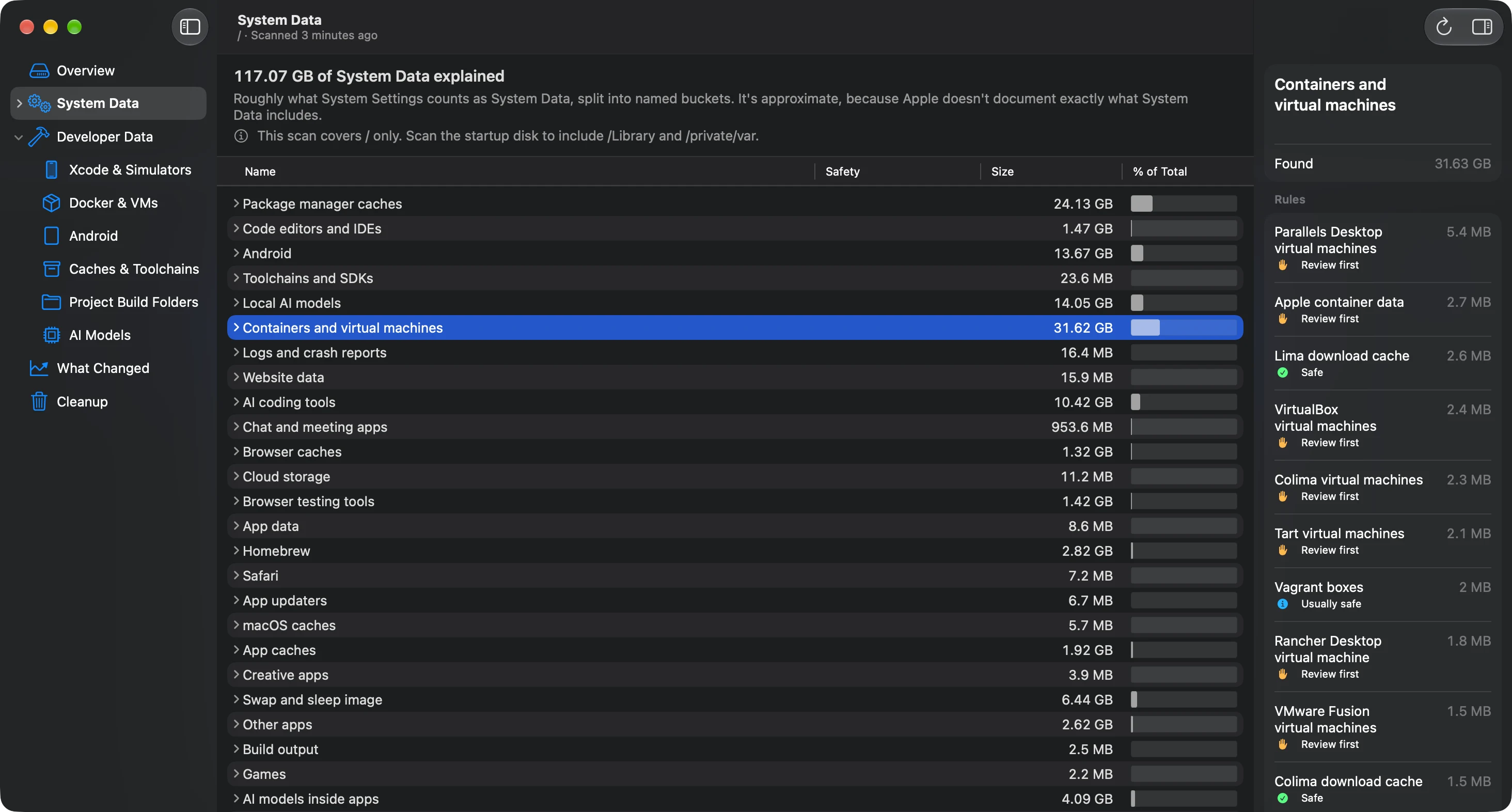
Each item gets a level from a catalog written and checked by hand, with sources:
- Safe: app caches, logs, crash reports and DerivedData. These start checked, and only they count in the headline number.
- Usually safe: system-wide caches and Docker's disk, which come back at a cost.
- Review first: Application Support, containers, group containers and AI models, which wait for your choice.
- Managed by macOS: snapshots, swap and the Spotlight index, explained and handled through macOS's own mechanism, never moved.
~/
Library/ Caches/ * Data that apps and macOS services keep so they can load things faster. Apps create it again when they need it.
Safe · Moves it to the Trash
~/
Library/ Containers/ */ Data/ Library/ Caches Cached data that sandboxed apps, such as most apps from the App Store, keep inside their own containers.
Safe · Moves it to the Trash
~/
Library/ Logs/ * Log files that apps and macOS services write in your Library folder to record what they do.
Safe · Moves what's inside it to the Trash
Hourly snapshots of your startup disk that Time Machine keeps on the disk itself, so you can restore files even without your backup disk.
Managed by macOS · Runs tmutil for Time Machine's own snapshots, through the helper
Tools with their own cleanup command run that command instead of having their files deleted, after the review sheet. What a command removes can't be put back, and the sheet says so.
What the app runs, after you review itPRO
- npm cache clean --force
- npm's download cache
- xcrun simctl --set previews delete all
- The simulators Xcode made for SwiftUI previews
Seeing System Data explained is free, and so are Undo, Put Back and Empty Trash. Cleanup, items that need an administrator and Time Machine snapshots are PRO: one payment of $4.99 with lifetime access. Every Pro tool's review is free to open, so you see what would go and why before you buy.
Frequently asked questions
Can you delete System Data on a Mac?
Not as a whole. System Data is what Storage settings has left after counting every other category, so it's made of many parts with different owners. You shrink it by removing the parts that can go, such as caches, logs and old snapshots, each in the place its owner expects.
Will a restart reduce System Data storage?
Usually a little. Restarting clears the swap files macOS uses as extra memory, which can be several gigabytes on a Mac that hasn't restarted in weeks. Swap comes back as apps need memory, so the gain lasts only until the next heavy session.
Why didn't System Data go down after I cleared caches?
Items you move to the Trash still take space and are counted under Trash until you empty it. A Time Machine local snapshot may also still hold the files you removed. Empty the Trash, give Storage settings a few minutes to recalculate, and remove local snapshots if you need the space at once.
How do I clear System Data on a Mac without Terminal?
Everything that's safe to do can be done without Terminal. Restart, remove local snapshots in Time Machine settings or Disk Utility, clear caches and logs in Finder, and remove developer files and models in the apps that made them. Commands pasted from a web page can't be undone and are a common way to spread malware.
Does safe mode clear System Data on a Mac?
It clears some system caches, such as font caches and the kernel cache, which can free a little space for something like a macOS update. macOS creates those caches again as needed, so it's a one-off gain. Restart normally to leave safe mode.
Will clearing System Data make my Mac faster?
No. Clearing caches and logs frees disk space, but it doesn't speed a Mac up, and apps are a little slower while they rebuild their caches. Space matters when a disk is nearly full, because updates, downloads and exports need room to work.
Is it safe to delete everything in the Library folder to clear System Data?
No. The Library folder holds every app's data and settings, including things you made, such as libraries and chat histories. Remove single items inside it after checking what they are, and leave the Library, Caches, Application Support and Containers folders themselves in place.