Wombit never deletes anything permanently by itself. A cleanup moves items to your Trash, where they stay until you empty it, and every run is logged so it can be undone.
Ways to start
- What's safe, on the map. Click the sidebar's "safe to remove" total, or the Safe to Remove filter, and only Safe items light up; nothing inside Documents or Desktop is among them. Review Safe Items… above the map opens the review sheet, and one more click there starts the cleanup.
- Move to Trash on any item a catalog entry lets the app remove, from the map, the list or the inspector. Usually safe and Review first items go this way, one by one, or through the cleanup tray, which collects items and reviews them together.
- The Developer Data pages, from the Go menu or the toolbar's Tools menu, where a tool's own command does the cleaning.
- The Apple Data pages, where you choose backups, Mail downloads, installers or large files one by one. Nothing there is selected for you.
Items no catalog entry explains are never offered for removal.
The review sheet
Every way in ends in the same review sheet, and nothing runs until you click its button: Move to Trash, or Clean Up when tools' own commands are included.
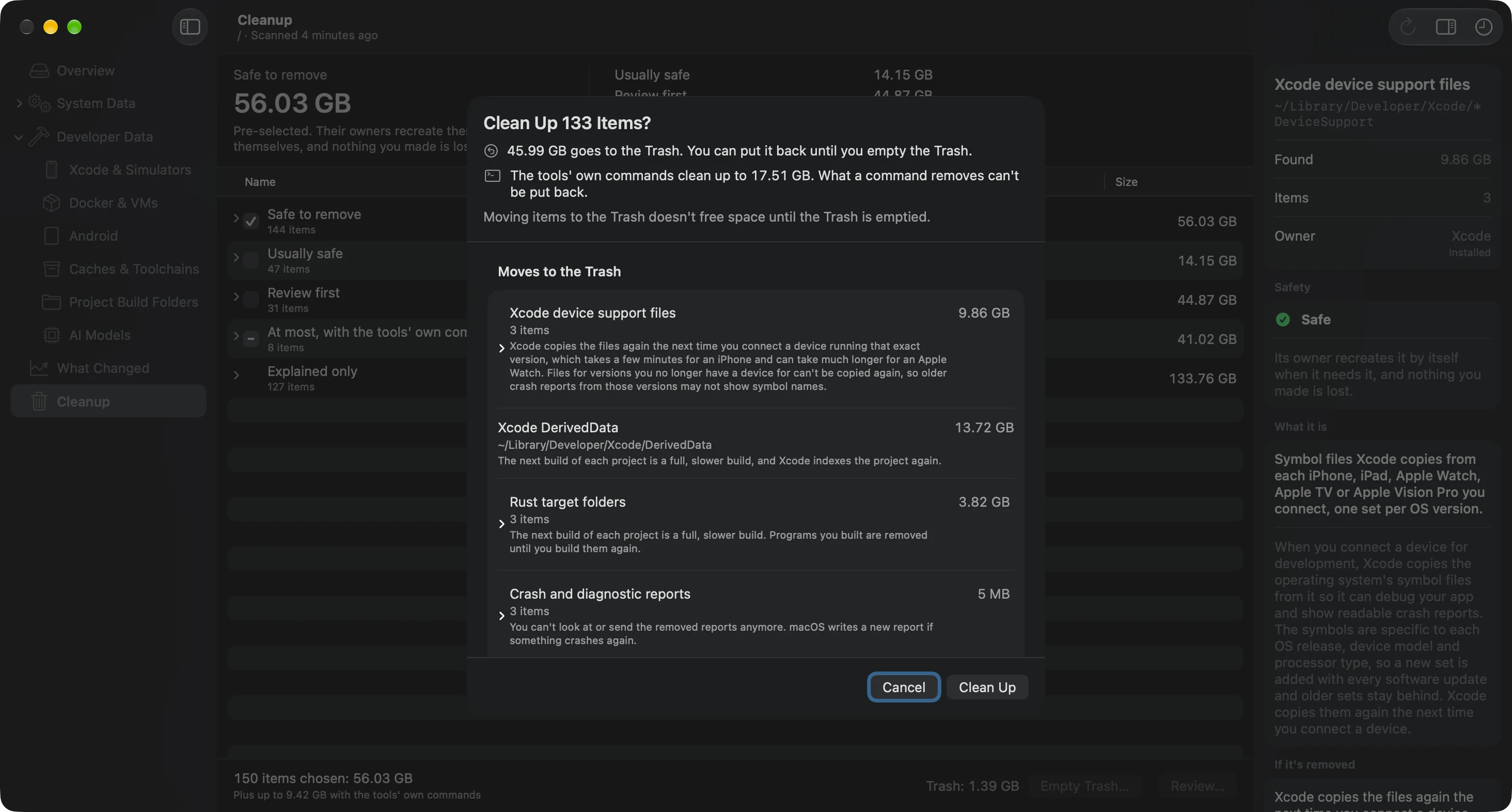
It lists:
- Moves to the Trash: each item, its size and what happens when it's removed. You can put these back.
- Tools' Own Commands: when a tool has its own cleanup command, such as npm, uv or Xcode's preview simulators, the app runs it instead of deleting the tool's files. What a command removes can't be put back, and the sheet says so. Commands that remove only what nothing uses show "up to" a size, since they usually free less.
- Left Out While Open: items whose app is open. The sheet offers to quit the app, the way ⌘Q does, and adds its items once it has quit. A cleanup never force-quits an app.
- Needs an Administrator: items that belong to macOS or another user, with Set Up Helper… if the helper isn't set up. See The helper.
- Not Removed: items only macOS, the app that owns them or you can remove, with what to do instead.
To try one on a test Mac, see Explain before you delete.
Checked again before each move
Right before moving an item, the app checks it again: it's still allowed, there's no link on the way to it, it's still the same kind of item it was in the scan, it hasn't changed in the last five minutes, and it isn't locked. An item that fails a check is listed under Left Alone with the reason. Nothing is retried behind your back.
Freeing the space
Moving items to the Trash doesn't free space until the Trash is emptied. When a cleanup finishes, the sheet says what moved, with Put Back and Done. Empty the Trash with Empty… beside the Trash at the bottom of the sidebar, or Empty Trash… in the File menu.
Emptying the Trash is the only permanent step, and it only happens when you ask. The confirmation says how many items it will erase and how much space they take, that you can't undo it, and how many of the items were moved there by cleanups. It empties only your own Trash. The helper erases only the items it moved there itself; without it, items that belong to macOS or another user stay in the Trash, and Finder can empty them.
Undo and Put Back
- Right after a cleanup, Edit › Undo puts everything back.
- Cleanup History, opened with the clock button beside the Trash at the bottom of the sidebar, or from the Window menu, lists every cleanup and uninstall with everything it moved. Select one and click Put Back All, or select items and click Put Back Selected.
- Items go back where they were, unless something new is there now. Nothing is overwritten.
- Finder's own Put Back works on these items too, except items the helper moved: put those back from the app.
Put Back works until the Trash is emptied. What a tool's own command removed can't be put back.
The log
Each cleanup writes its own log as it goes: what it moved, where to, and what each command freed. If the app or the Mac stops halfway, the log still says exactly what happened. The logs are readable text files (.jsonl, one line per step) in the app's folder, ~/, in Cleanups.
Free and Pro
Finding and explaining everything is free. Cleanup is part of PRO, and its review sheet is free to open, so you can see what it would move before you buy. See Free for good, no trial.